# orx-rabbit-control
Creates a web-based remote UI to control your OPENRNDR program from a mobile device or a different computer. Alternative to `orx-gui`.
`orx-rabbit-control` uses `orx-parameters` annotations to generate a control interface, just like `orx-gui`.
The main difference is that with `orx-gui` the UI is shown on a layer above your program while `orx-rabbit-control`
shows it on a web browser (potentially on another device). Ideal for tweaking parameters on interactive installations
without needing to attach a mouse or keyboard to the rendering computer. It also avoids difficulties caused by
UIs showed on rotated displays or projections.
 Find examples under the [demo](./src/demo/kotlin) folder.
### Accessing the generated web UI
Once you start a program that uses orx-rabbit-control, a QR code will be displayed on a layer above your visuals
until someone accesses the web UI.
The UI can be accessed in a web browser in three different ways:
- scan the QR code with a mobile device connected to the same wireless network,
- or click on the URL displayed in the IDE console,
- or go to [client.rabbitcontrol.cc](http://client.rabbitcontrol.cc) and enter your IP-address and port (displayed at the end of the URL shown in the IDE console)
Once the UI is visible in a web browser one can interact with the sliders, buttons, checkboxes etc.
to control the OPENRNDR program remotely.
More info about the web client:
[rabbitcontrol.cc/apps/webclient/](http://rabbitcontrol.cc/apps/webclient/)
### Screenshot of a simple web UI
Find examples under the [demo](./src/demo/kotlin) folder.
### Accessing the generated web UI
Once you start a program that uses orx-rabbit-control, a QR code will be displayed on a layer above your visuals
until someone accesses the web UI.
The UI can be accessed in a web browser in three different ways:
- scan the QR code with a mobile device connected to the same wireless network,
- or click on the URL displayed in the IDE console,
- or go to [client.rabbitcontrol.cc](http://client.rabbitcontrol.cc) and enter your IP-address and port (displayed at the end of the URL shown in the IDE console)
Once the UI is visible in a web browser one can interact with the sliders, buttons, checkboxes etc.
to control the OPENRNDR program remotely.
More info about the web client:
[rabbitcontrol.cc/apps/webclient/](http://rabbitcontrol.cc/apps/webclient/)
### Screenshot of a simple web UI
 ### Frequently asked questions
[https://rabbitcontrol.cc/faq/](https://rabbitcontrol.cc/faq/)
## Demos
### DemoRabbitControl
Demonstrates how to use RabbitControl to create a web-based user interface for your program.
A `settings` object is created using the same syntax used for `orx-gui`, including
annotations for different variable types.
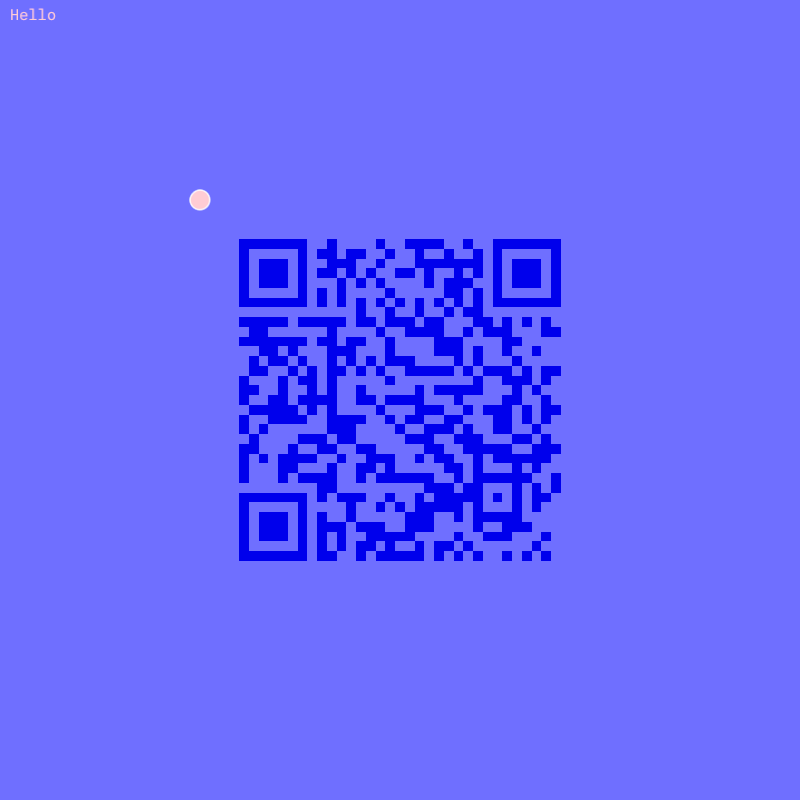
The program then passes these `settings` to the `RabbitControlServer`. A QR-code is displayed
to open the web user interface. A clickable URL is also displayed in the console.
Once the UI is visible in a web browser we can use it to control the OPENRNDR program.
[source code](src/demo/kotlin/DemoRabbitControl.kt)
### DemoRabbitControlManualOverlay
Demonstrates how the QR-code pointing at the Rabbit Control web-based user interface
can be displayed and hidden manually.
To display the QR-code overlay in this demo, hold down the HOME key in the keyboard.

[source code](src/demo/kotlin/DemoRabbitControlManualOverlay.kt)
### DemoRabbitHole
Starts the RabbitControlServer with a `Rabbithole` using the key 'orxtest'.
`Rabbithole` allows you to access your exposed parameters from Internet
connected computers that are not in the same network.
To use it with this example use 'orxtest' as the tunnel-name in https://rabbithole.rabbitcontrol.cc
[source code](src/demo/kotlin/DemoRabbitHole.kt)
### Frequently asked questions
[https://rabbitcontrol.cc/faq/](https://rabbitcontrol.cc/faq/)
## Demos
### DemoRabbitControl
Demonstrates how to use RabbitControl to create a web-based user interface for your program.
A `settings` object is created using the same syntax used for `orx-gui`, including
annotations for different variable types.
The program then passes these `settings` to the `RabbitControlServer`. A QR-code is displayed
to open the web user interface. A clickable URL is also displayed in the console.
Once the UI is visible in a web browser we can use it to control the OPENRNDR program.

[source code](src/demo/kotlin/DemoRabbitControl.kt)
### DemoRabbitControlManualOverlay
Demonstrates how the QR-code pointing at the Rabbit Control web-based user interface
can be displayed and hidden manually.
To display the QR-code overlay in this demo, hold down the HOME key in the keyboard.

[source code](src/demo/kotlin/DemoRabbitControlManualOverlay.kt)
### DemoRabbitHole
Starts the RabbitControlServer with a `Rabbithole` using the key 'orxtest'.
`Rabbithole` allows you to access your exposed parameters from Internet
connected computers that are not in the same network.
To use it with this example use 'orxtest' as the tunnel-name in https://rabbithole.rabbitcontrol.cc

[source code](src/demo/kotlin/DemoRabbitHole.kt)