orx-camera
2D and 3D cameras controllable via mouse and keyboard.
Usage
import org.openrndr.application
import org.openrndr.color.ColorRGBa
import org.openrndr.draw.DrawPrimitive
import org.openrndr.extra.camera.AxisHelper
import org.openrndr.extra.camera.GridHelper
import org.openrndr.extra.camera.OrbitalCamera
import org.openrndr.extra.camera.OrbitalControls
import org.openrndr.extra.meshgenerators.boxMesh
import org.openrndr.extra.meshgenerators.sphereMesh
import org.openrndr.math.Vector3

fun main() = application {
    program {
        val camera = OrbitalCamera(
            Vector3.UNIT_Z * 90.0, Vector3.ZERO, 90.0, 0.1, 5000.0
        )
        val controls = OrbitalControls(camera, keySpeed = 10.0)

        val sphere = sphereMesh(radius = 25.0)
        val cube = boxMesh(20.0, 20.0, 5.0, 5, 5, 2)

        extend(camera)
        extend(AxisHelper()) // shows XYZ axes as RGB lines
        extend(GridHelper(100)) // debug ground plane
        extend(controls) // adds both mouse and keyboard bindings
        extend {
            drawer.vertexBuffer(sphere, DrawPrimitive.LINE_LOOP)
            drawer.vertexBuffer(cube, DrawPrimitive.LINE_LOOP)
            drawer.stroke = ColorRGBa.WHITE
            drawer.fill = null
            repeat(10) {
                drawer.translate(0.0, 0.0, 10.0)
                // 2D primitives are not optimized for 3D and can
                // occlude each other
                drawer.circle(0.0, 0.0, 50.0)
            }
        }
    }
}
Keybindings
w- move forwards (+z)s- move backwards (-z)Leftora- strafe left (-x)Rightord- strafe right (+x)Upore- move up (+y)Downorq- move up (-y)Page Up- zoom inPage Down- zoom out
Demos
DemoCamera2D01
Camera2D demo
click and drag the mouse for panning, use the mouse wheel for zooming
DemoCamera2D02
Camera2D demo with static elements
An approach for having certain elements not affected by the camera. See DemoCamera2DManual01.kt for a new and simpler approach
DemoCamera2DManual01
Demonstrates how to use Camera2DManual to have
some elements affected by an interactive 2D camera combined with
other elements not affected by it.
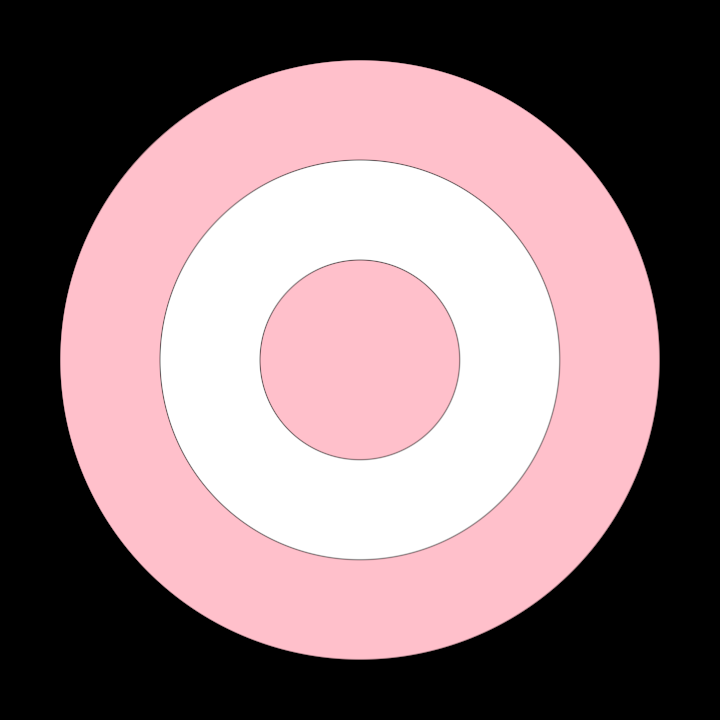
In this example both PINK circles can be dragged, scaled and rotated while the white circle in the middle is static.
DemoCamera2DManual02
Demonstrate the use of Camera2DManual to independently translate, scale and rotate one contour
in a collection.
When the mouse is clicked, the active contour is transformed using the camera view matrix, then the camera is reset to its default state and whatever shape is under the mouse becomes the new active contour.
As the mouse is dragged or its wheel scrolled, the camera is updated, affecting how the active contour is rendered.
DemoOrbital01
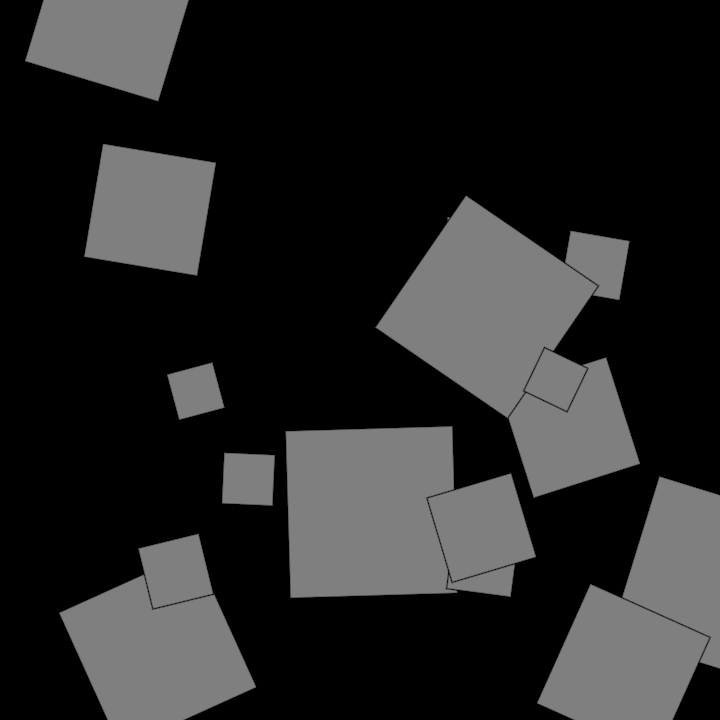
Demonstrate the use of Orbital, an interactive 3D camera
that can be controlled with a mouse and a keyboard.
DemoOrbitalCamera01
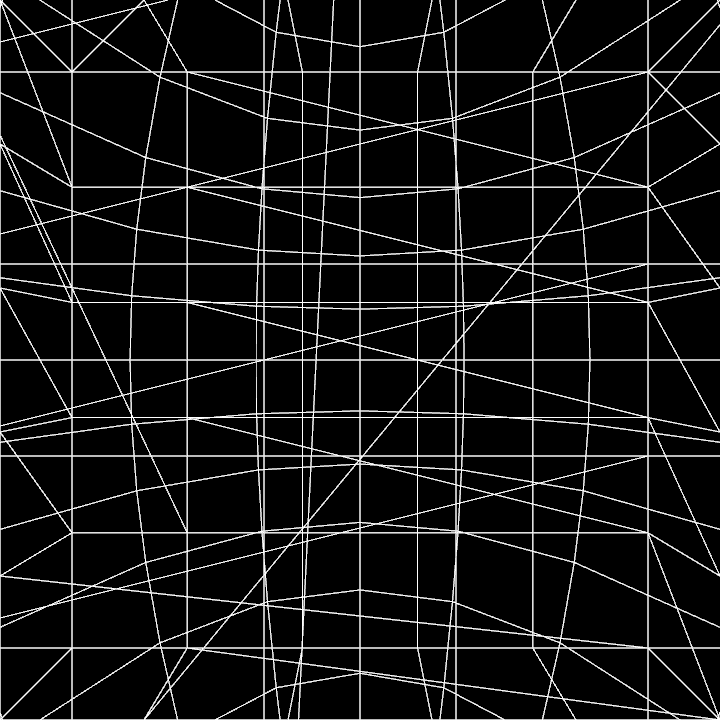
Demonstrate the use of OrbitalCamera, OrbitalControls, AxisHelper and GridHelper.
Press the t key to toggle camera interaction, or r to reset the camera to its defaults.
DemoOrbitalManual01
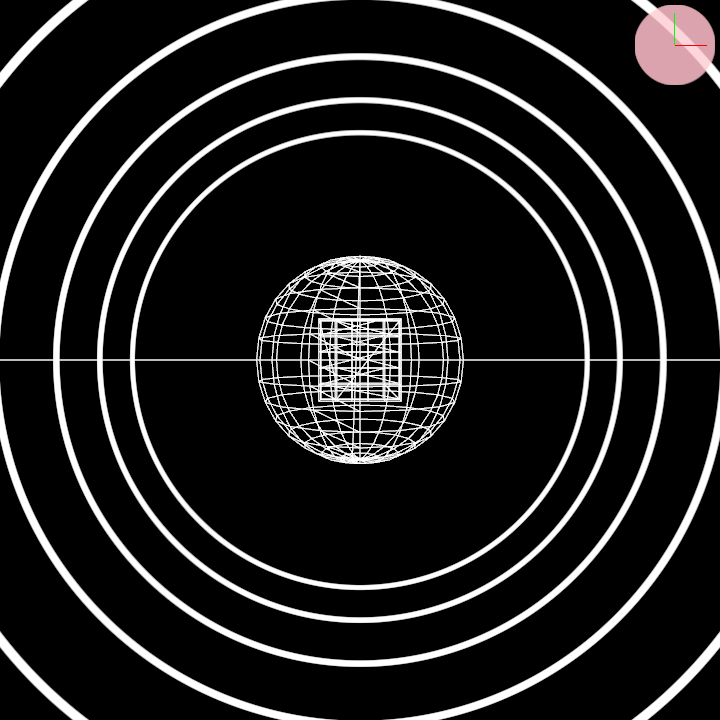
Demonstrate the use of an orbital camera to render a sphere and a cube in 3D space as wireframe meshes, positioned and rendered independently using the camera's isolated drawing state. A stationary pink circle is also drawn in the center of the scene.
Functionality:
- Initializes a sphere mesh and a cube mesh with predefined dimensions.
- Spawns an orbital camera, initially positioned away from the origin, to allow for focused rendering.
- Renders 3D wireframe shapes (sphere and cube) using the camera's isolated perspective.
- Draws a static 2D pink circle overlay at the window center.
DemoParametricOrbital01
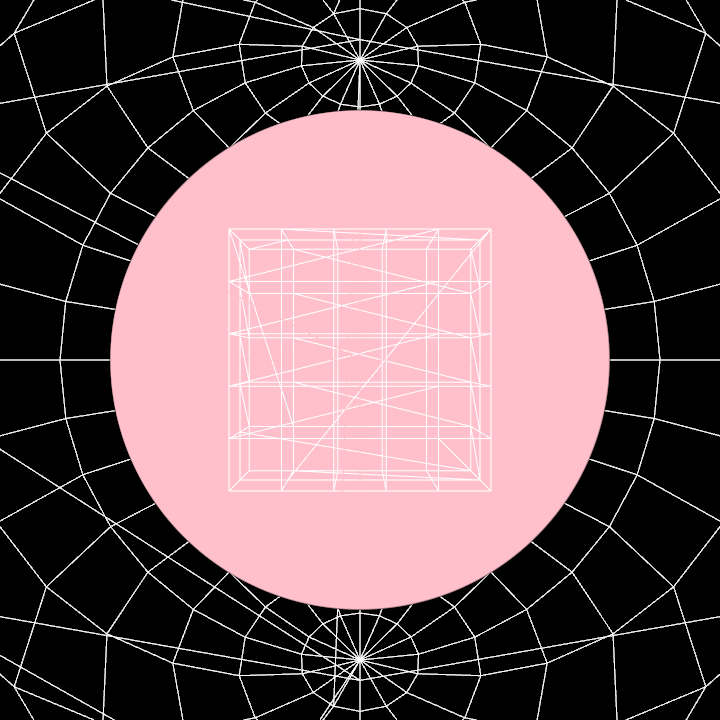
Demonstrates the use of a ParametricOrbital camera.
This 3D camera can't be directly interacted with a mouse or a keyboard,
but only via a GUI (or via code).
The GUI state is saved when closing the program and loaded when running it again.
The GUI also allows randomizing, loading and saving its state to a file via the top buttons it displays.