
orx-shapes
Collection of 2D shape generators and modifiers.
Demos
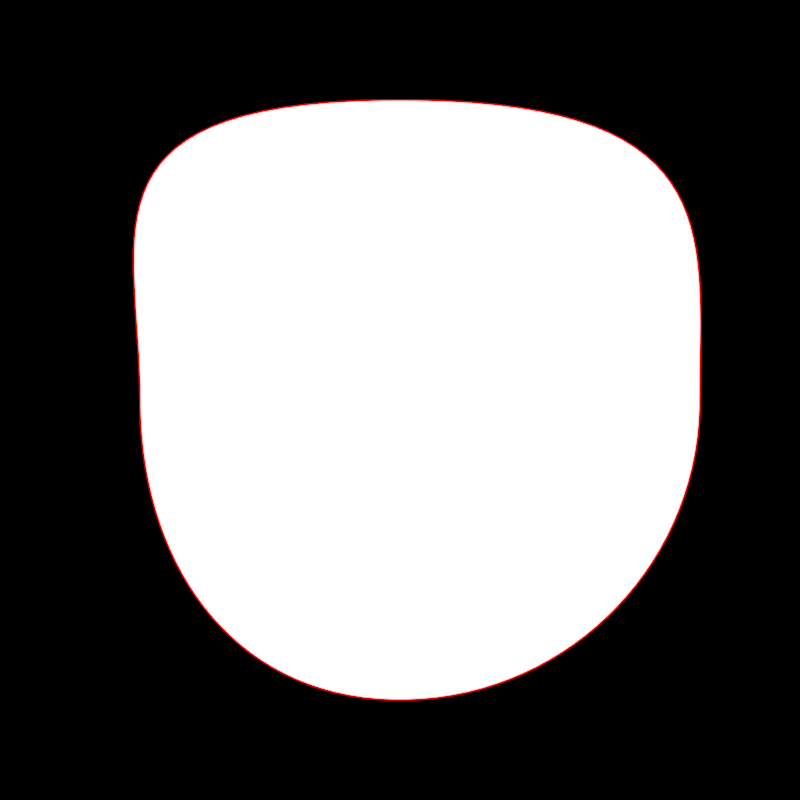
adjust/DemoAdjustContour01
Demonstrates how to use adjustContour to select and modify three vertices
in a circular contour. In OPENRNDR circles contain 4 cubic bézier
segments connecting 4 vertices.
On every animation frame the circular contour is created and transformed
using sines, cosines and the variable seconds for an animated effect.
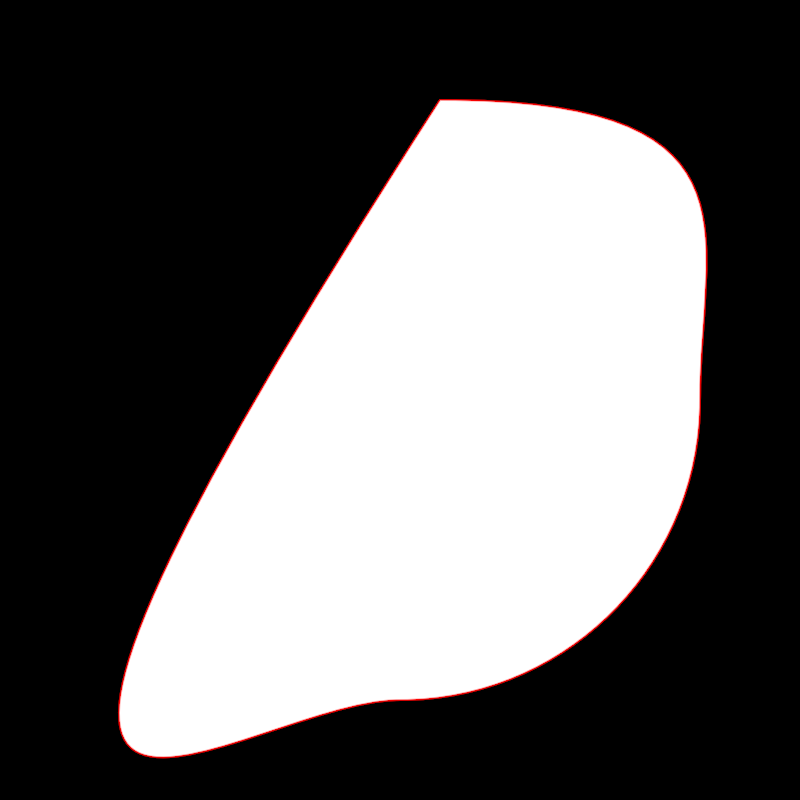
adjust/DemoAdjustContour02
Demonstrates how to use adjustContour to select and remove vertex 0
from a circular contour, then select and animate the position and scale the new vertex 0.
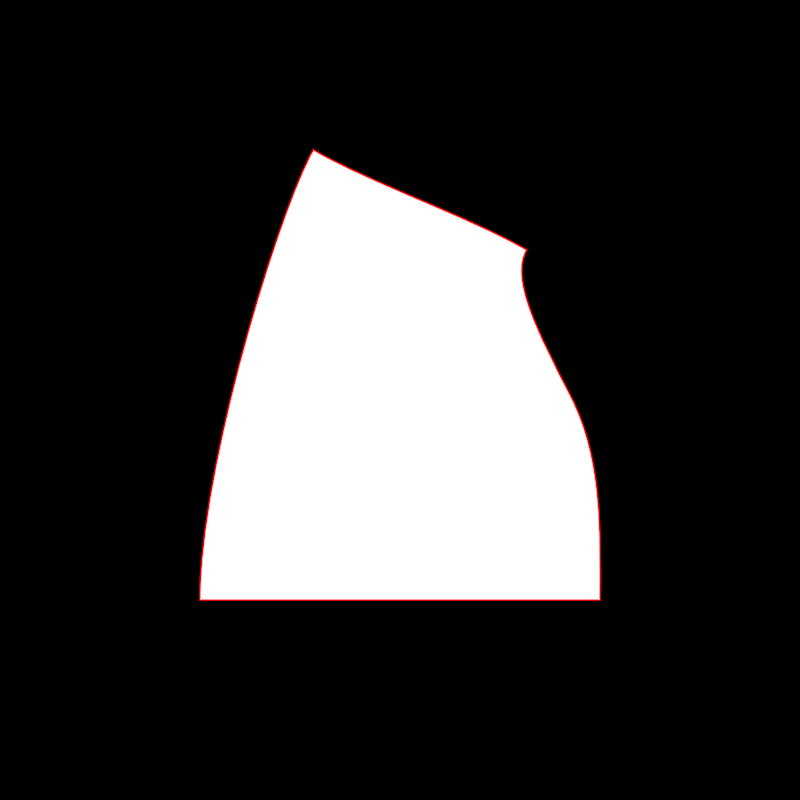
adjust/DemoAdjustContour03
Demonstrates how to select and alter the edges of a rectangle.
The rectangle is a scaled-down version window bounds.
By default, the edges of a rectangular contour are linear, so the edge.toCubic() method
is called to make it possible to bend them.
Then various edges are selected one by one and transformed over time using operations like scale, rotate, splitAt and moveBy.
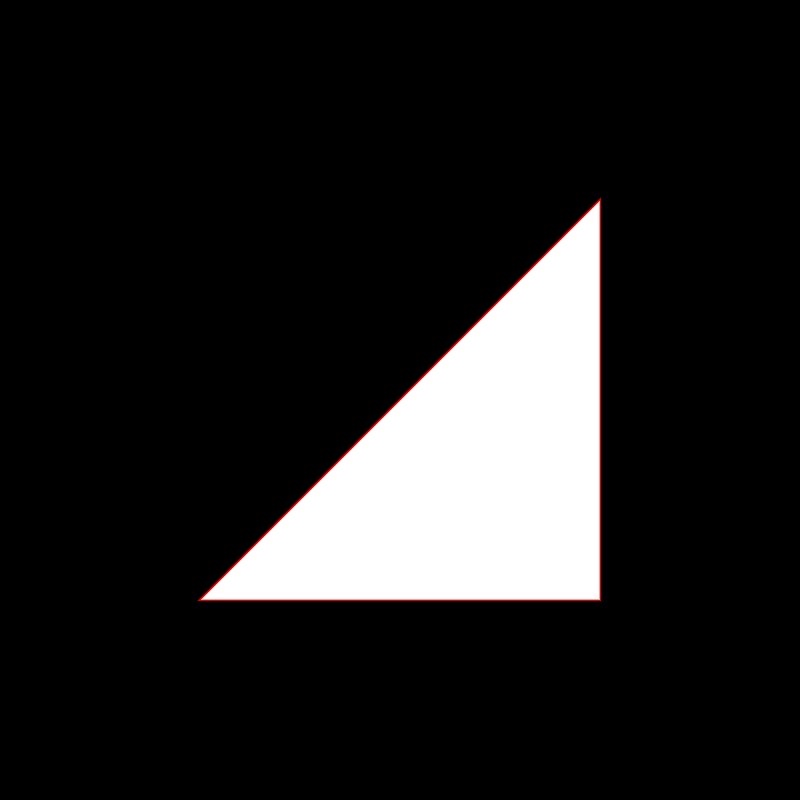
adjust/DemoAdjustContour04
Demonstrates an adjustContour animated effect where edge 0 of a contour
is replaced by a point sampled on that edge. The specific edge point oscillates between
0.0 (at the start of the segment) and 1.0 (at the end) using a cosine and the seconds variable.
The base contour used for the effect alternates every second between a rectangular and a circular contour.
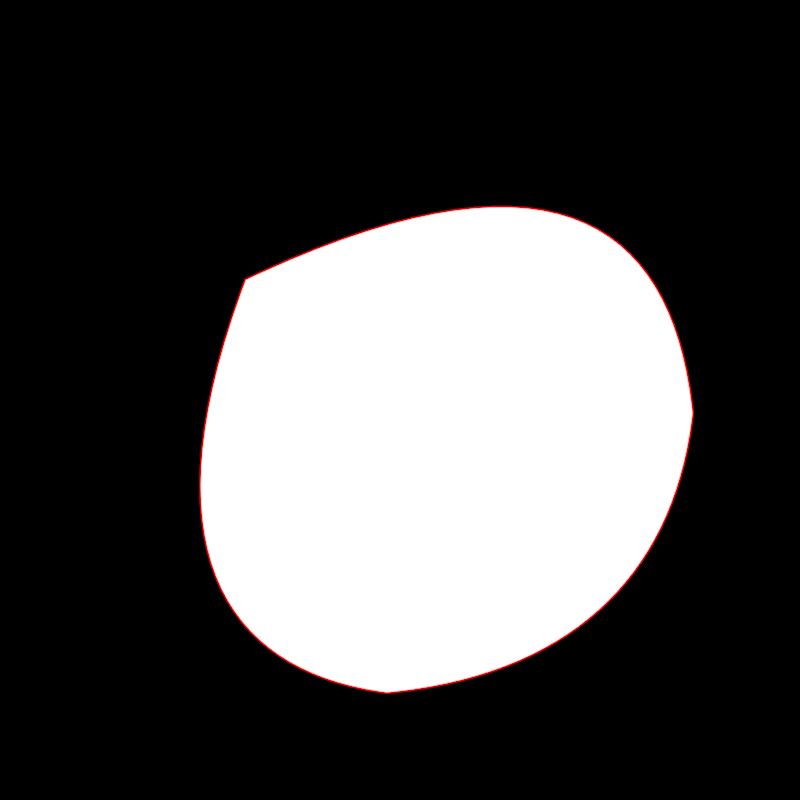
adjust/DemoAdjustContour05
Demonstrates animated modifications to a circular contour using adjustContour.
The application creates a circular contour and dynamically alters its edges based on the current time in seconds. Each edge of the contour is selected and transformed through a series of operations:
- The currently active edge (based on time modulo 4) is replaced with a point at 0.5.
- All other edges are reshaped by reducing their length dynamically, with the reduction calculated using a cosine function involving the current time in seconds.
The resulting contour is then drawn with a red stroke color.
adjust/DemoAdjustContour06
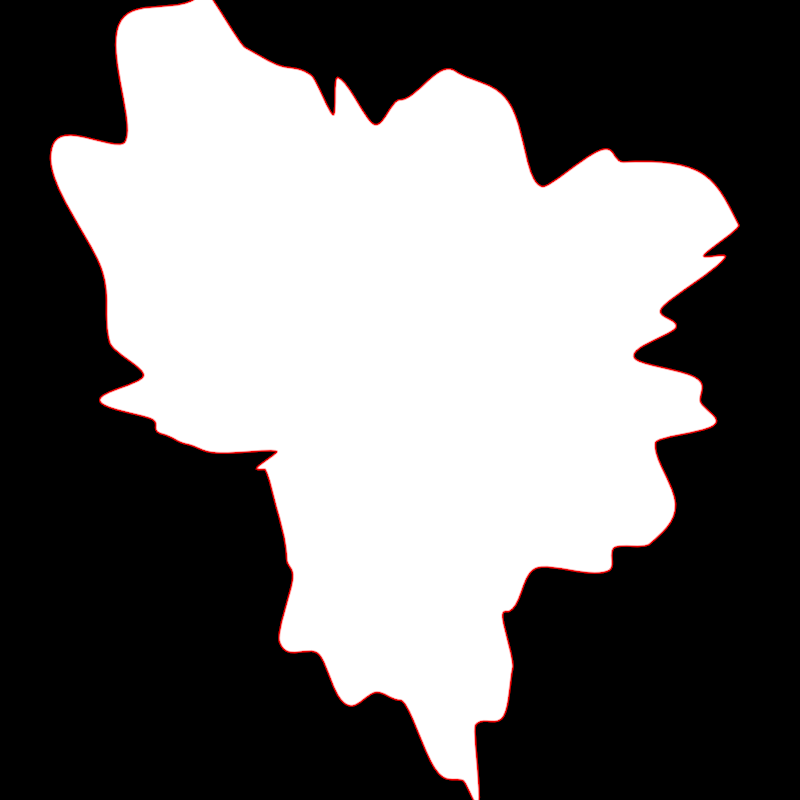
Demonstrates the use of adjustContour
to create an animated effect where edges are split, vertices are selected,
and transformations such as scaling are applied.
The program creates a circular contour which is modified on each animation frame.
- Edges of the circular contour are split dynamically based on a time-based cosine function.
- Newly created vertices are selected and scaled around the center of the contour using time-dependent transformations.
The selection of vertices happens automatically thanks to
parameters.clearSelectedVertices and parameters.selectInsertedVertices
The modified animated contour is finally drawn.
adjust/DemoAdjustContour07
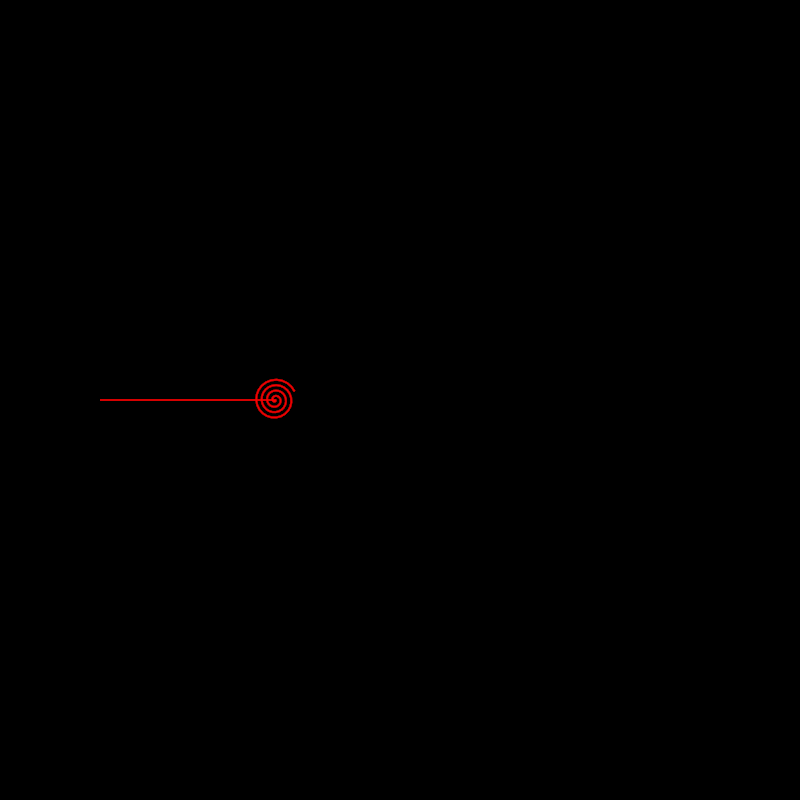
Demonstrates how to create and manipulate a contour dynamically using the adjustContour function.
The program initializes a simple linear contour and applies transformations to it on each animation frame:
- The only edge of the contour is split into many equal parts.
- A value between 0 and 1 is calculated based on the cosine of the current time in seconds.
- That value is used to calculate an anchor point and to select all vertices to its right
- The selected vertices are rotated around an anchor, as if rolling a straight line into a spiral.
adjust/DemoAdjustContour08
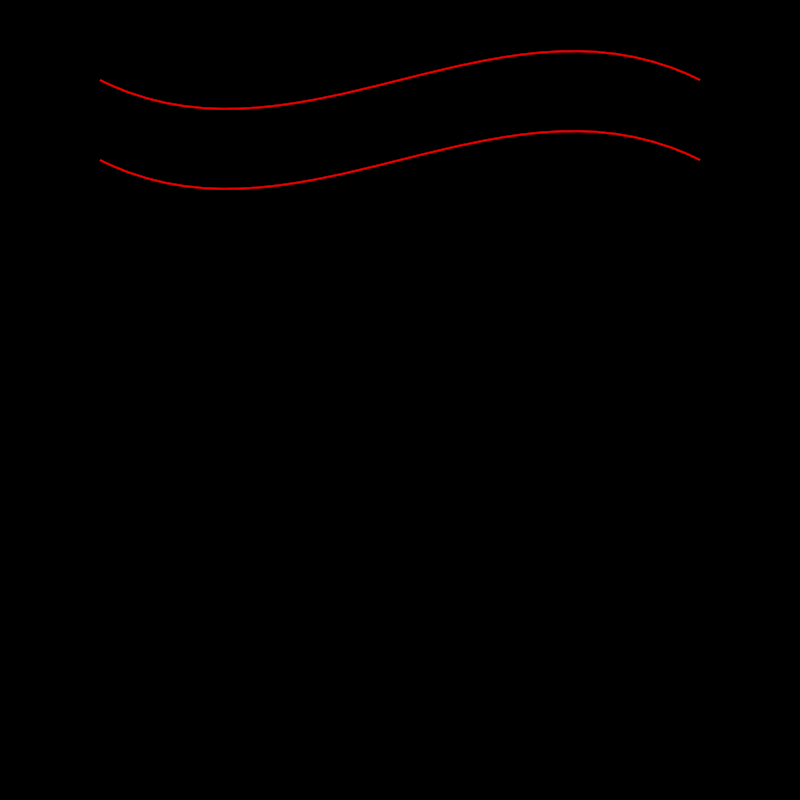
Demonstrates how to adjust and manipulate the vertices and edges of a contour.
This method shows two approaches for transforming contours:
- Adjusting vertices directly by selecting specific vertices in a contour and modifying their control points.
- Adjusting edges of a contour by transforming their control points.
For each approach, a red line is drawn representing the transformed contour.
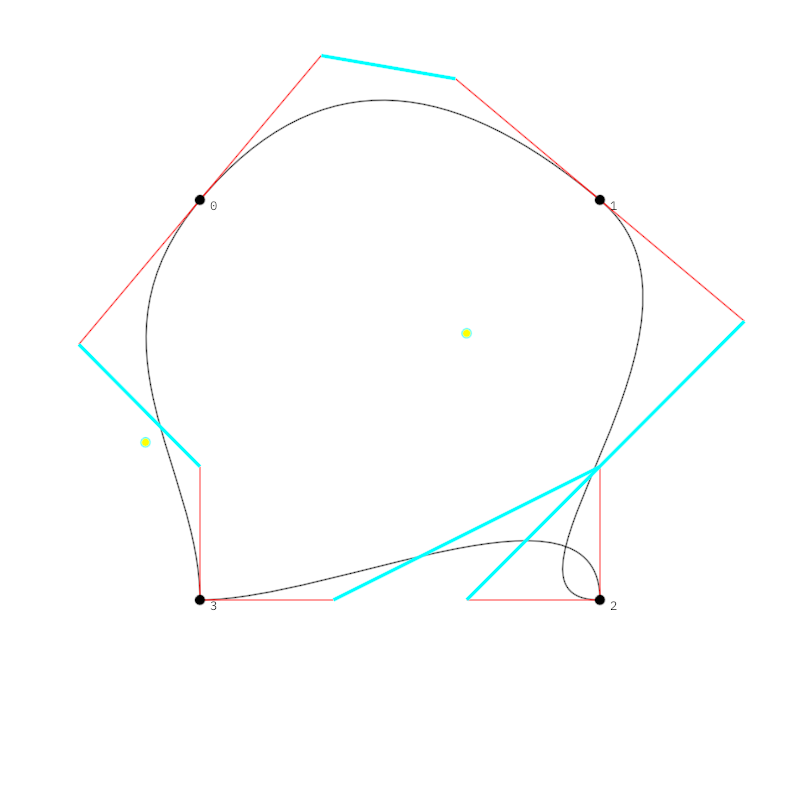
adjust/DemoAdjustContour09
Demonstrates how to manipulate a contour by adjusting and transforming its vertices and edges, and subsequently visualizing the result using different drawing styles.
The program creates a rectangular contour derived by shrinking the bounds of the drawing area. It then applies multiple transformations to selected vertices. These transformations include:
- Averaging tangents for selected vertices
- Scaling and rotating vertex positions based on the horizontal mouse position
- Switching tangents for specific vertices
The resulting contour is drawn in black. Additionally:
- Control line segments are visualized in red, connecting segment endpoints to control points.
- Vertices are numbered and highlighted with black-filled circles.
- Tunni lines, which represent optimized control line placements, are visualized in cyan.
- Tunni points, marking the Tunni line's control, are emphasized with yellow-filled circles.
adjust/DemoAdjustContourContinue01
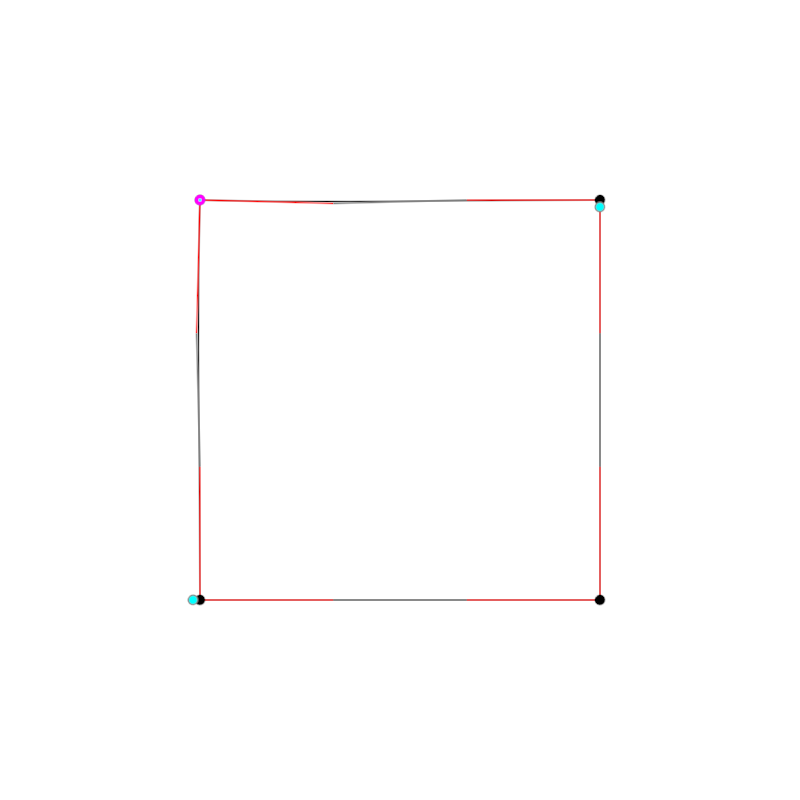
Demonstrates how to adjust and animate contour segments and vertices.
The method initially creates a contour by offsetting the edges of the window's bounds. A process is defined to sequence through various transformations on the contour, such as selecting edges, selecting vertices, rotating points, or modifying segment attributes based on mathematical transformations.
The adjusted contour and its modified segments and vertices are iterated through a sequence and updated in real time. Rendering involves visualizing the contour, its control points, the Tunni lines, Tunni points, as well as the selected segments and points with distinct styles for better visualization.
The complex animation sequence is implemented using coroutines. Two loops in the code alternate
between rotating vertices and adjusting Tunni lines while the extend function takes care of
rendering the composition in its current state.
The core elements to study to in this demo are adjustContourSequence and launch.
alphashape/DemoAlphaShape01
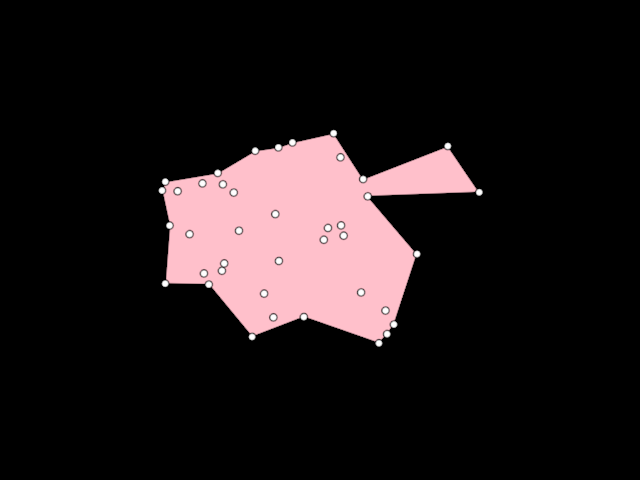
Demonstrates the use of [AlphaShape] to create a [org.openrndr.shape.ShapeContour] out of a collection of random [Vector2] points. Unlike the convex hull, an Alpha shape can be concave.
More details in WikiPedia
alphashape/DemoAlphaShape02
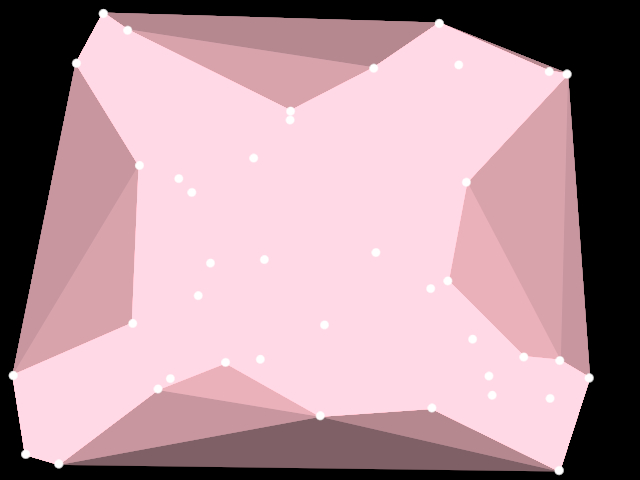
Demonstrates the use of [AlphaShape] to create ten [org.openrndr.shape.ShapeContour] instances out of a collection of random [Vector2] points.
The same points are used for each contour, but an increased alpha parameter is passed to the AlphaShape algorithm. Higher values return more convex shapes = shapes with a larger surface.
The list of shapes is reversed to draw the smaller contours on top, otherwise only the last one would be visible.
An instance of [Random] with a fixed seed is used to ensure the resulting random shape is always the same.
arrangement/DemoArrangement01
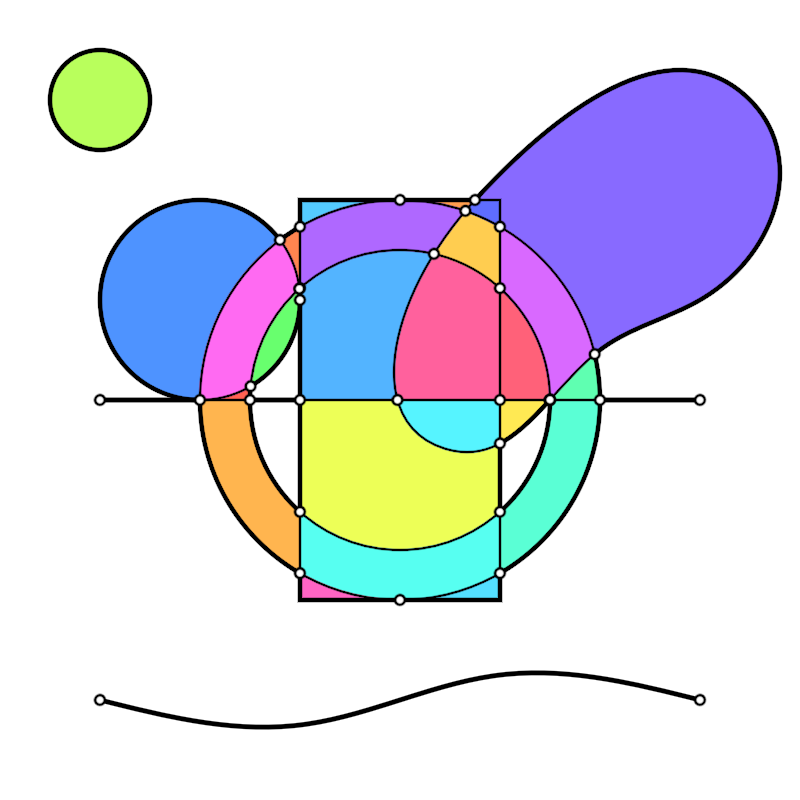
arrangement/DemoArrangement02
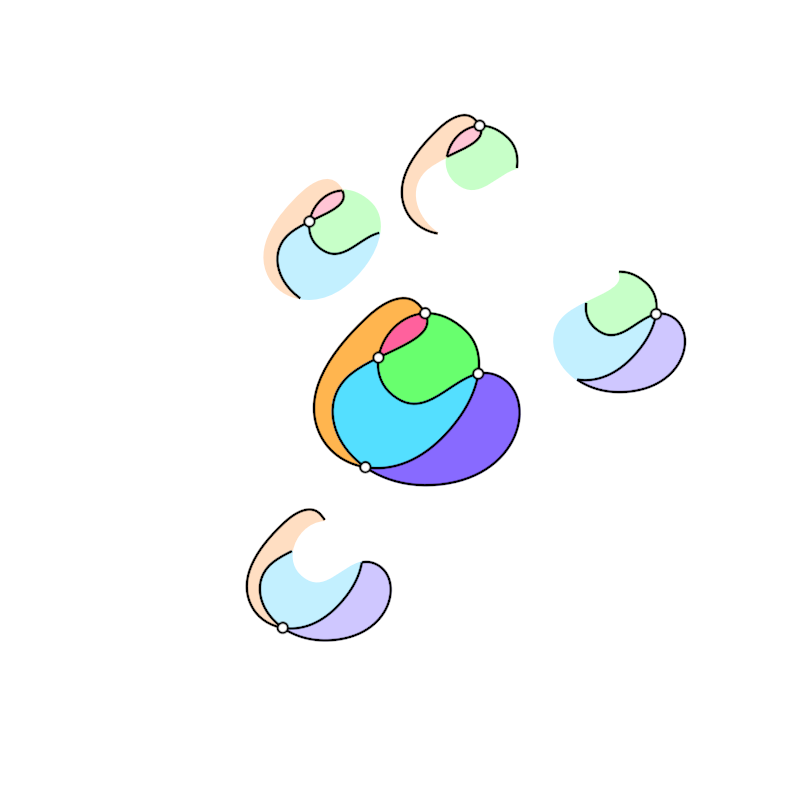
arrangement/DemoArrangement04
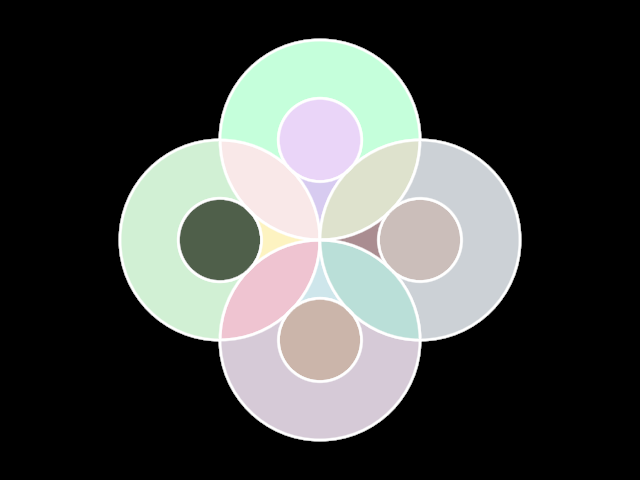
bezierpatch/DemoBezierPatch01
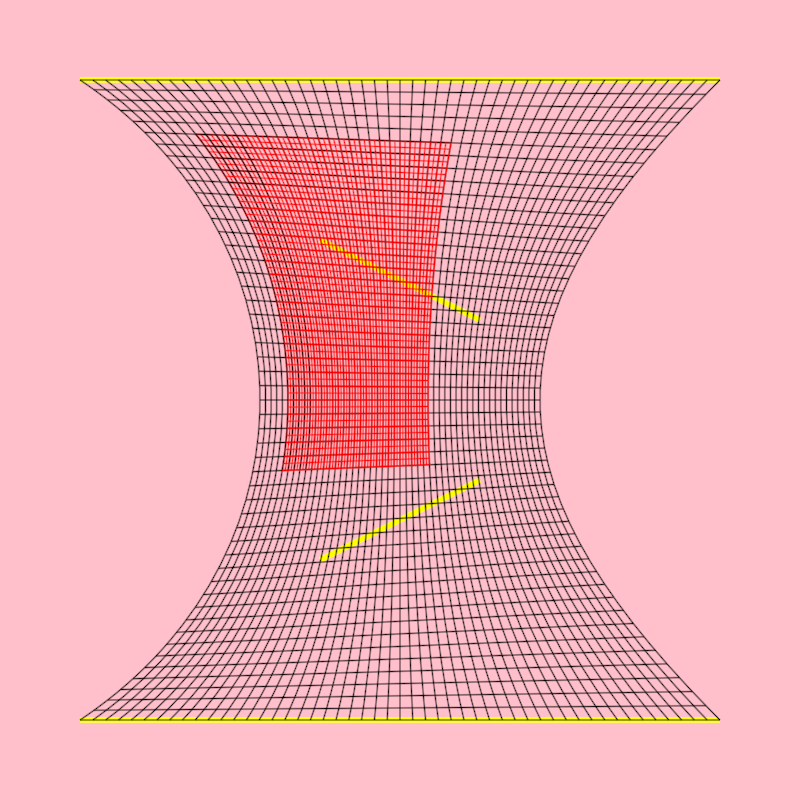
Shows how to
- create a [bezierPatch] out of 4 [LineSegment]
- create a sub-patch out of a [bezierPatch]
- create horizontal and vertical [ShapeContour]s out of [bezierPatch]es
The created contours are horizontal and vertical in "bezier-patch space" but are rendered deformed following the shape of the bezier patch.
bezierpatch/DemoBezierPatch02
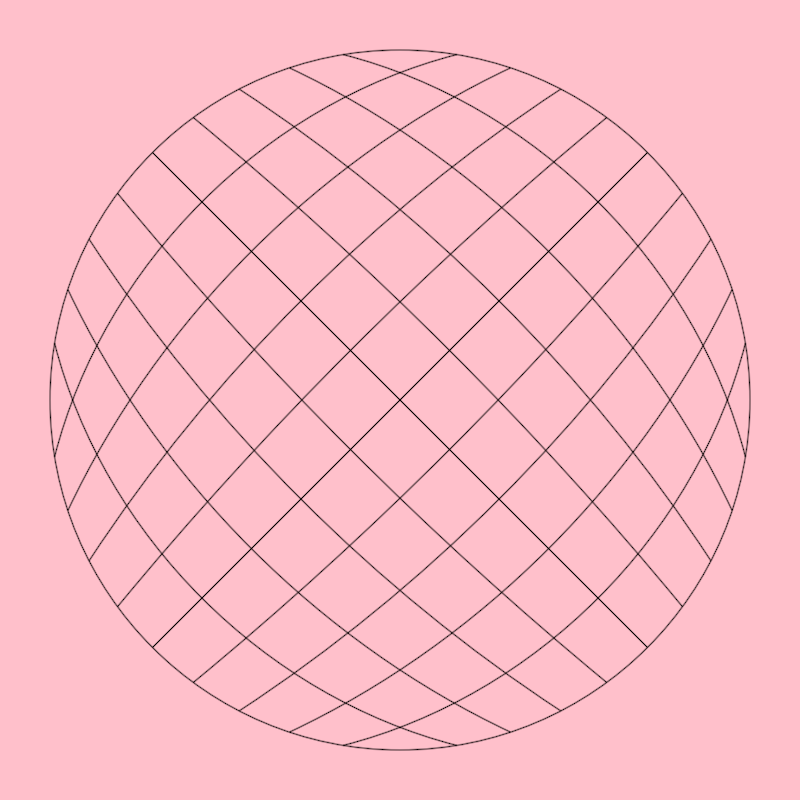
Shows how to create a [bezierPatch] out of a closed [ShapeContour] with 4 curved segments.
Calling [Circle.contour] is one way of producing such a contour with vertices at the cardinal points but one can manually create any other 4-segment closed contour to use in bezier patches.
bezierpatch/DemoBezierPatch03
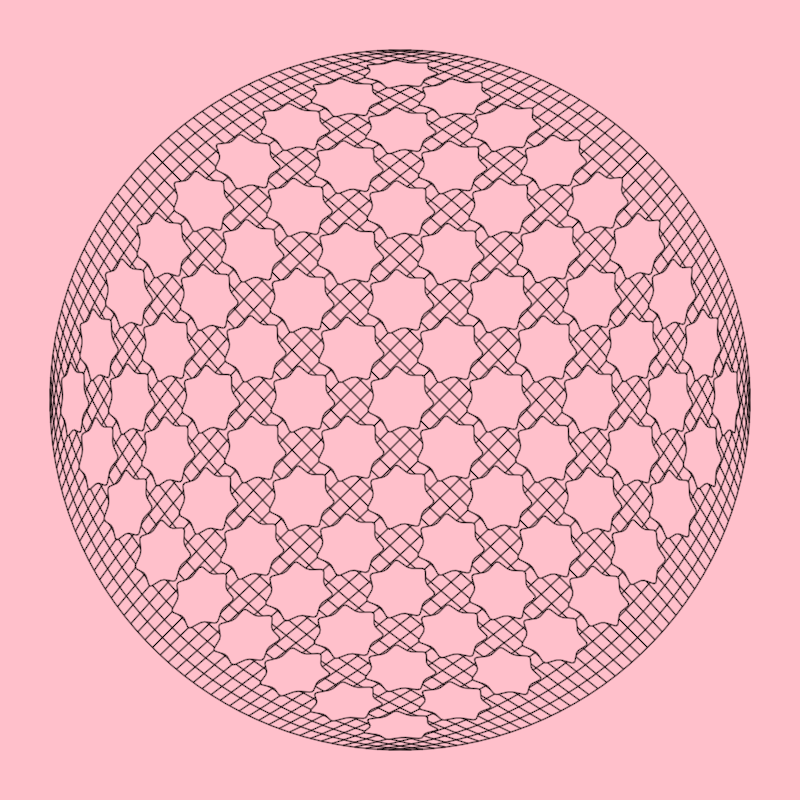
Shows how to distort [ShapeContour]s using a [bezierPatch]
In this case the contours are regular stars and the bezier patch is created using a circular contour with the required 4 segments.
bezierpatch/DemoBezierPatch04
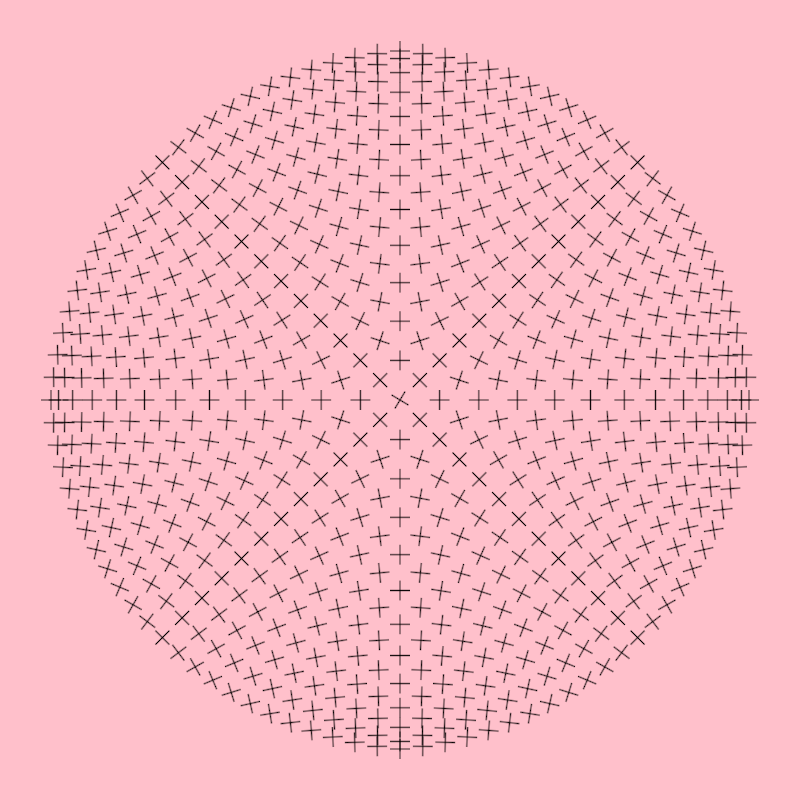
Shows how to get positions and gradient values of those positions from a [bezierPatch]
You can think of bezierPatch.position() as requesting points in a wavy flag (the bezier patch) using normalized uv coordinates.
bezierpatch/DemoBezierPatch05
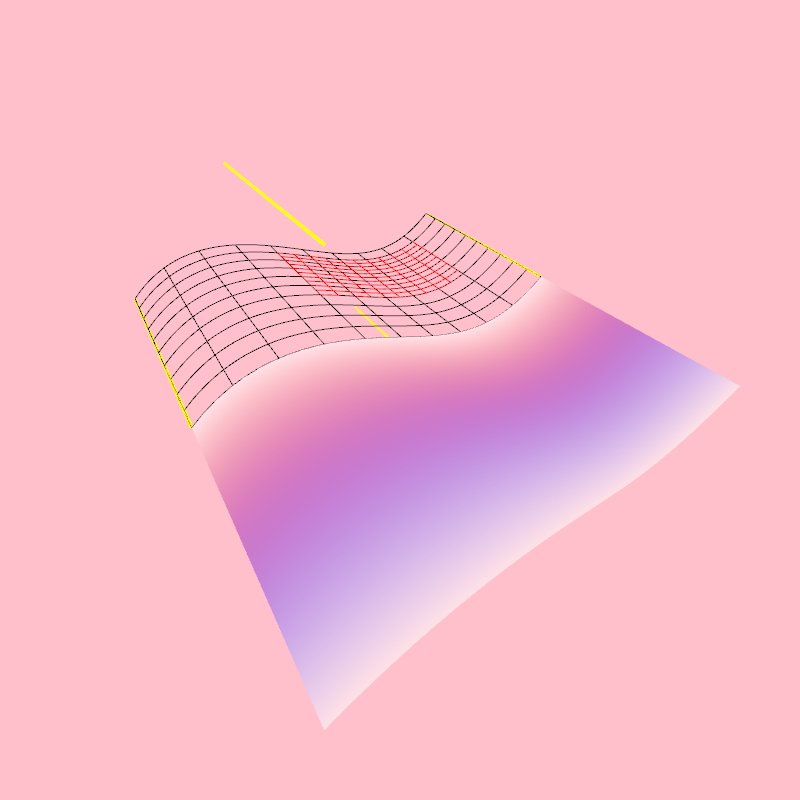
Shows how to
- create a [bezierPatch] out of 4 [Segment3D]
- create a sub-patch out of a [bezierPatch]
- create horizontal and vertical [Path3D]s out of [bezierPatch]es
- add colors to a [bezierPatch]
- draw a [bezierPatch] surface
The created contours are horizontal and vertical in "bezier-patch space" but are rendered deformed following the shape of the bezier patch.
bezierpatch/DemoBezierPatch06
Shows how to
- create a [bezierPatch] out of 4 curved Segment2D instances
- apply an image texture to the patch using a shadeStyle
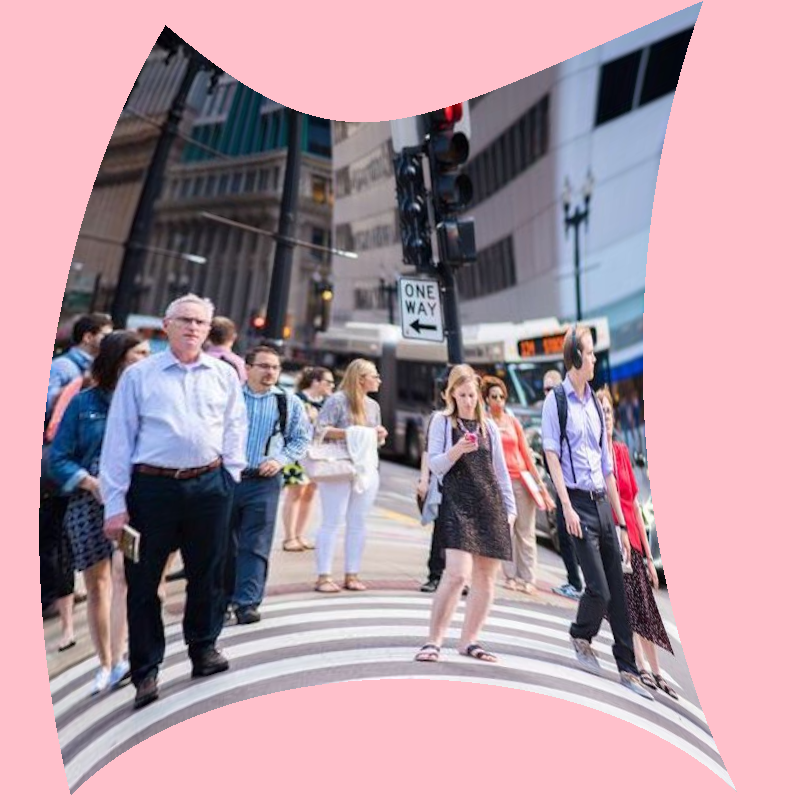
bezierpatch/DemoBezierPatchDrawer01
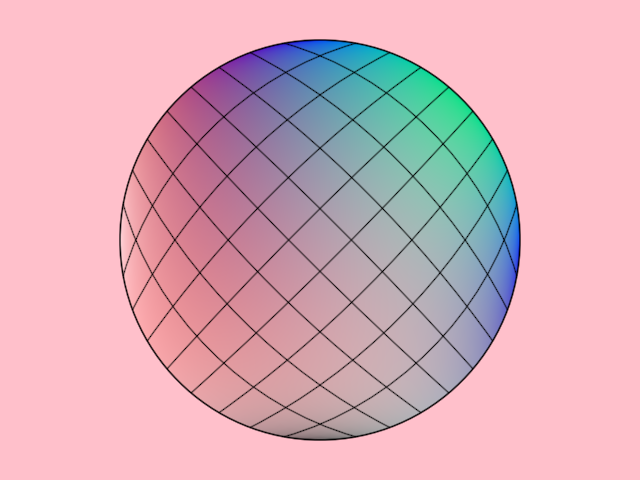
bezierpatch/DemoBezierPatchDrawer02
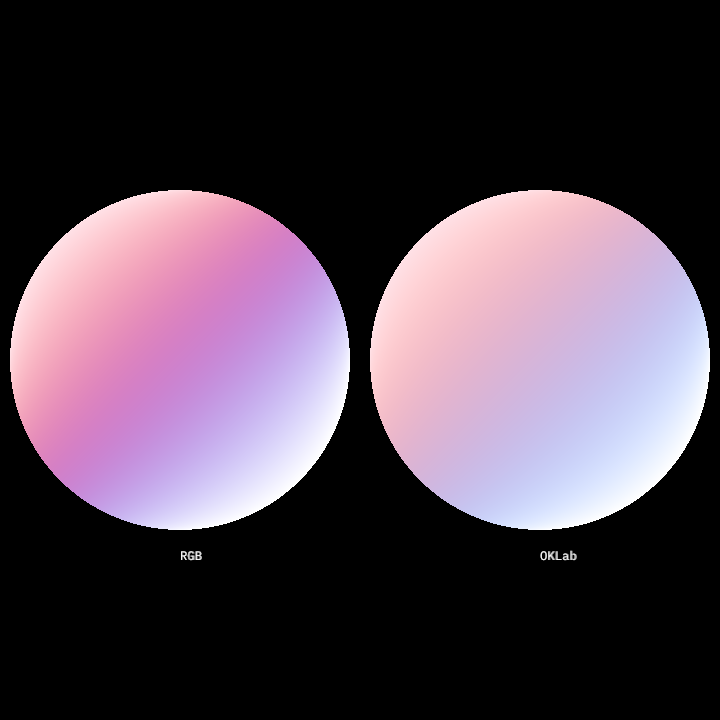
bezierpatch/DemoBezierPatchDrawer03
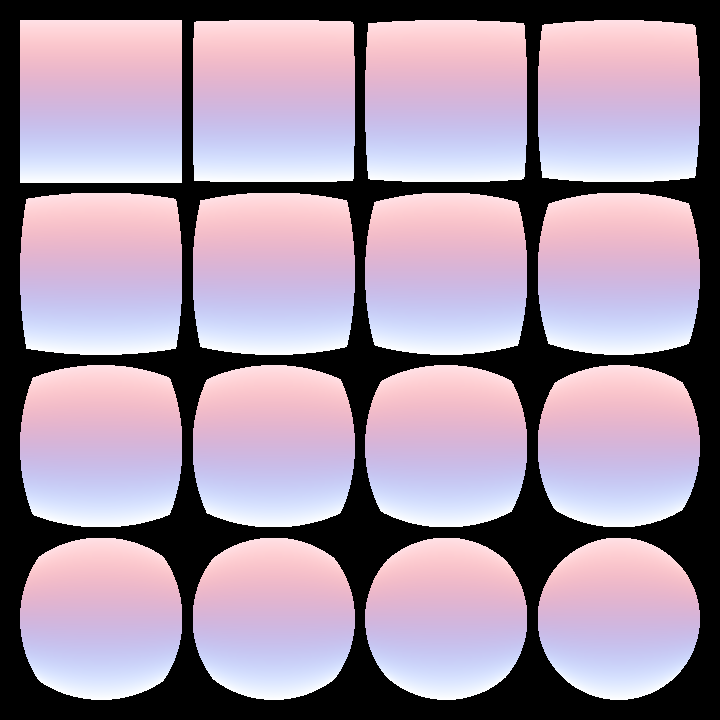
bezierpatch/DemoBezierPatches01
Shows how to create a [bezierPatch] out of a closed [ShapeContour] with 4 curved segments.
Calling [Circle.contour] is one way of producing such a contour with vertices at the cardinal points but one can manually create any other 4-segment closed contour to use in bezier patches.

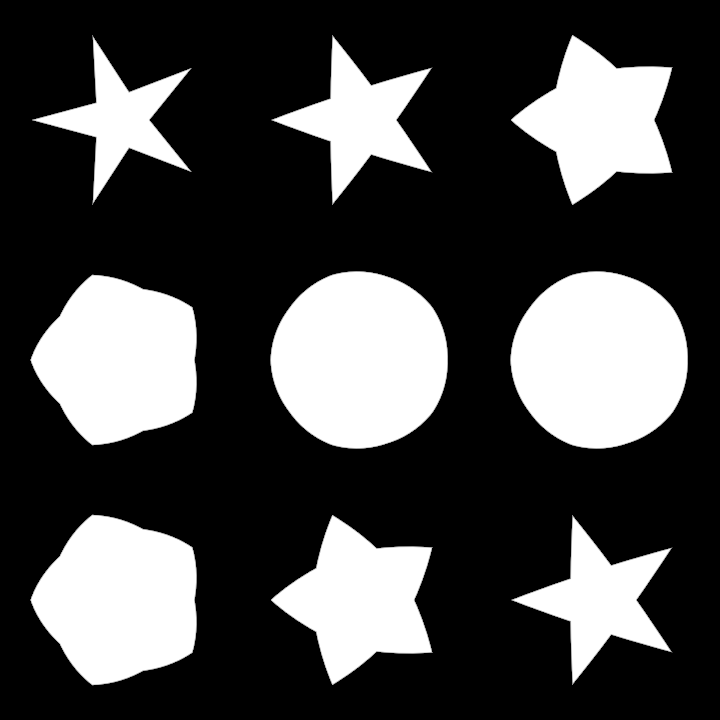
blend/DemoContourBlend01
Demonstration of uniform contour blending
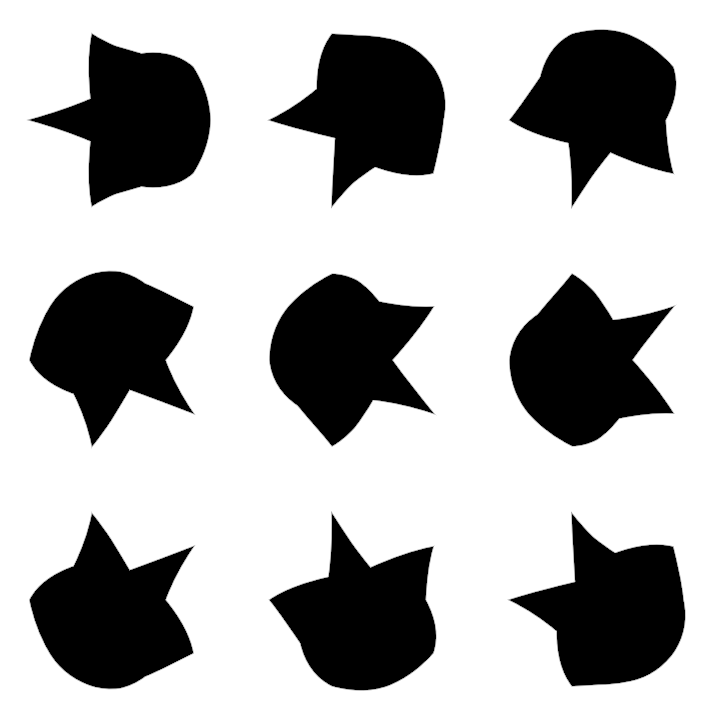
blend/DemoContourBlend02
Demonstration of non-uniform contour blending
frames/DemoFrames01
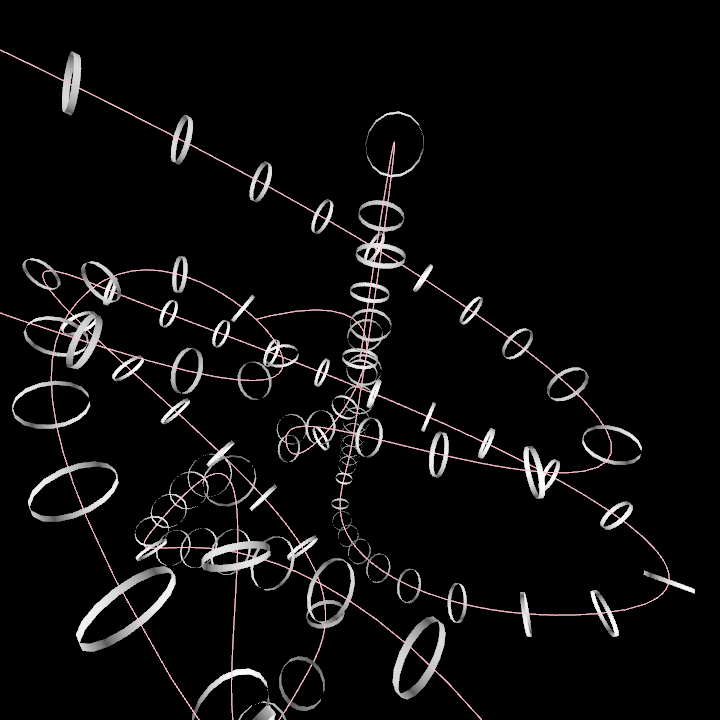
hobbycurve/DemoHobbyCurve01
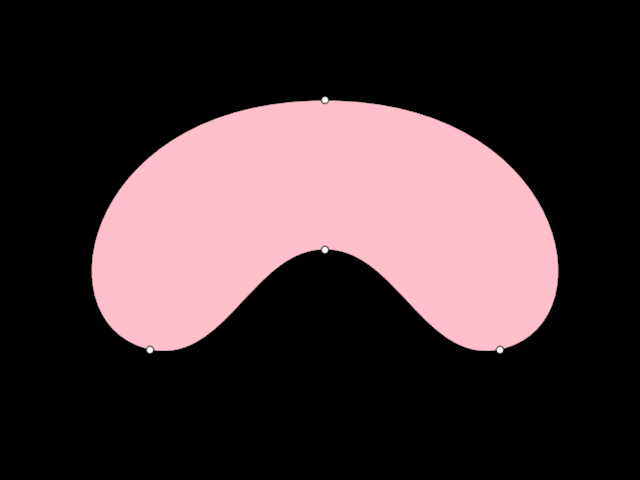
hobbycurve/DemoHobbyCurve02
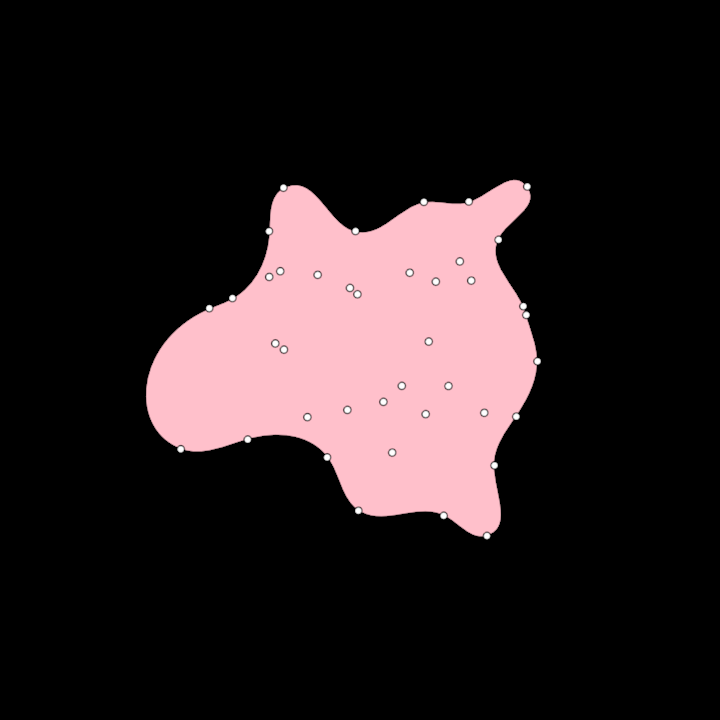
hobbycurve/DemoHobbyCurve03
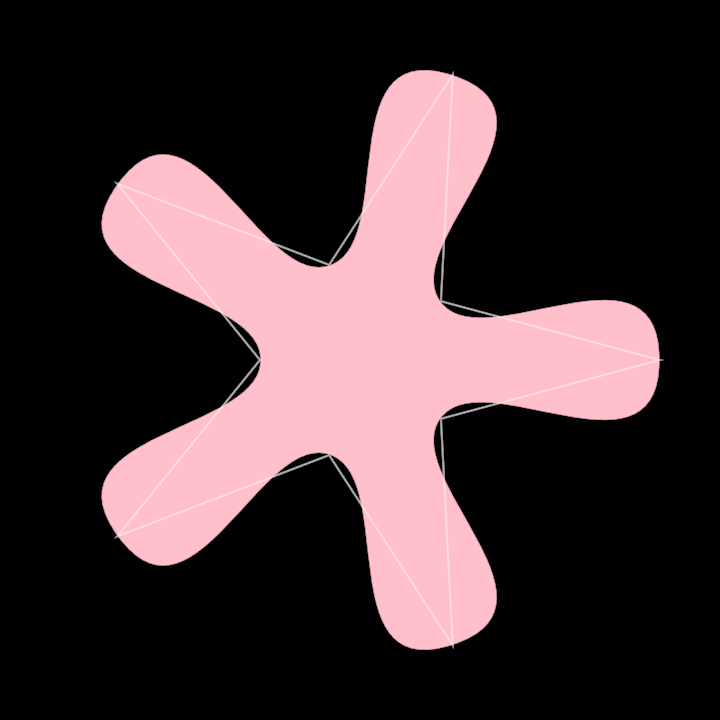
hobbycurve/DemoHobbyCurve3D01
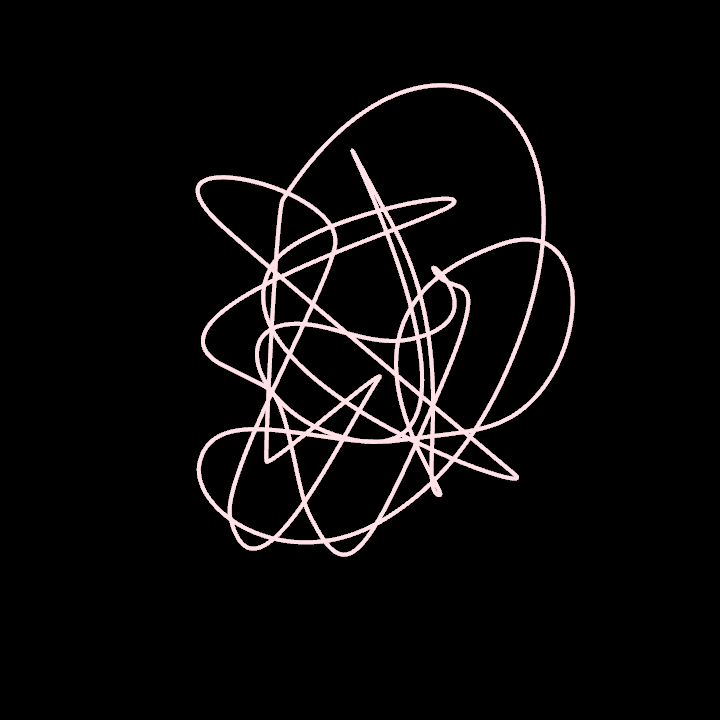
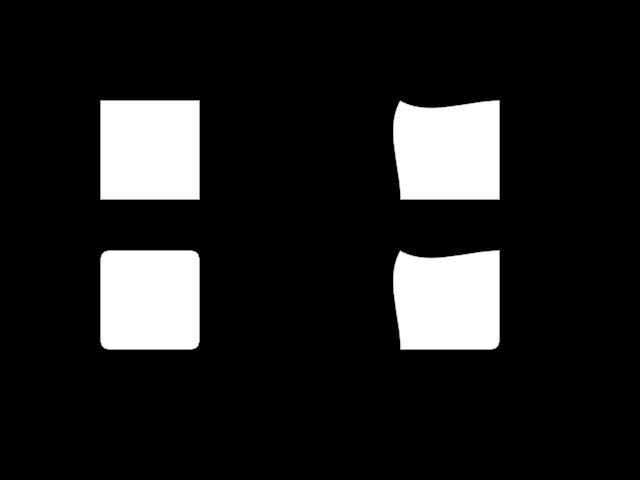
operators/DemoRoundCorners01
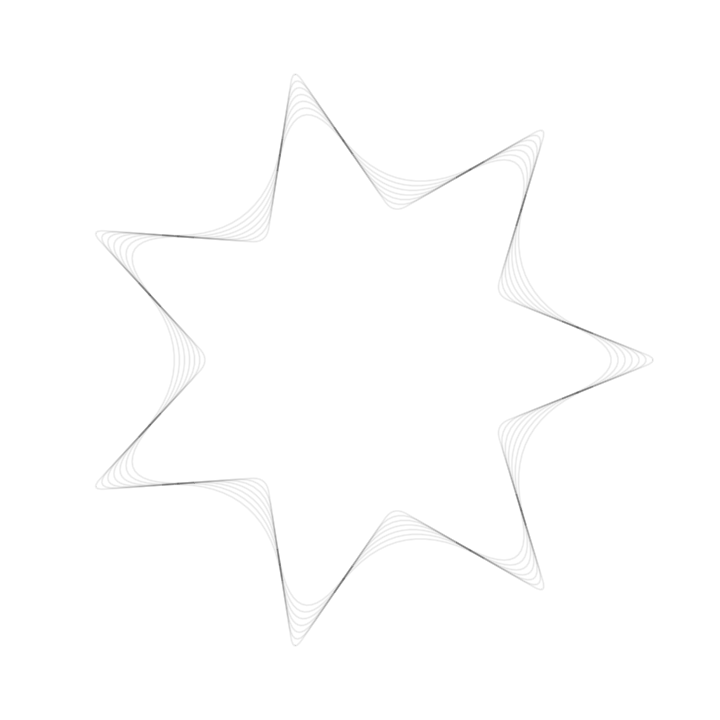
operators/DemoRoundCorners02
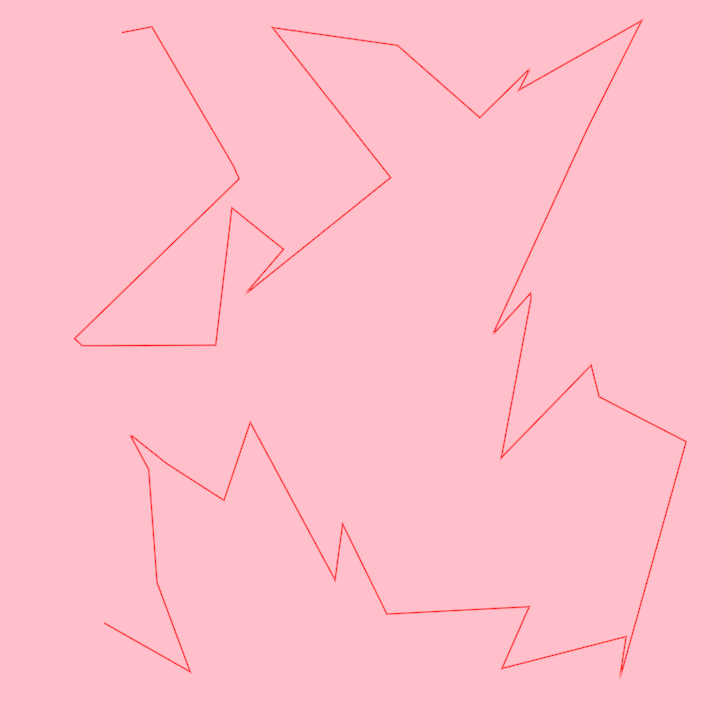
ordering/DemoHilbertOrder01
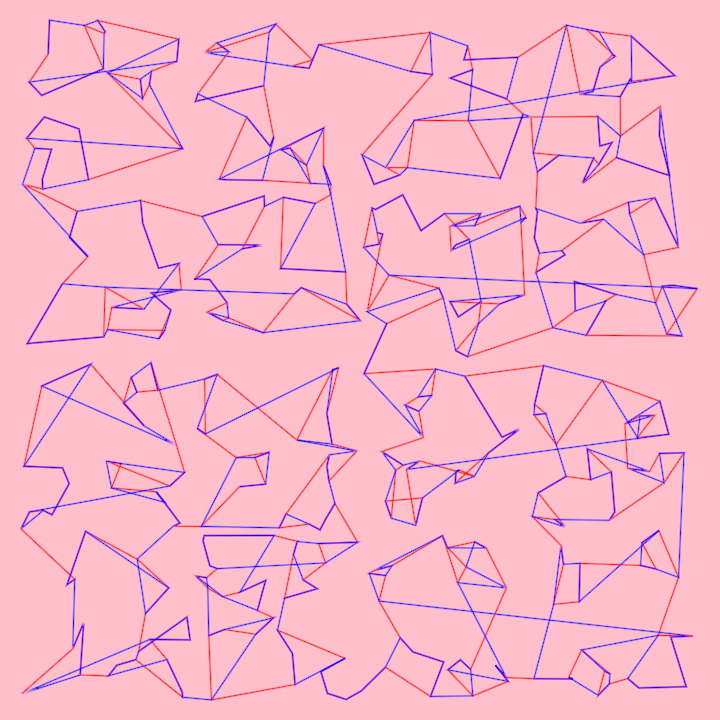
ordering/DemoHilbertOrder02
path3d/DemoPath3DProjection

primitives/DemoArc01
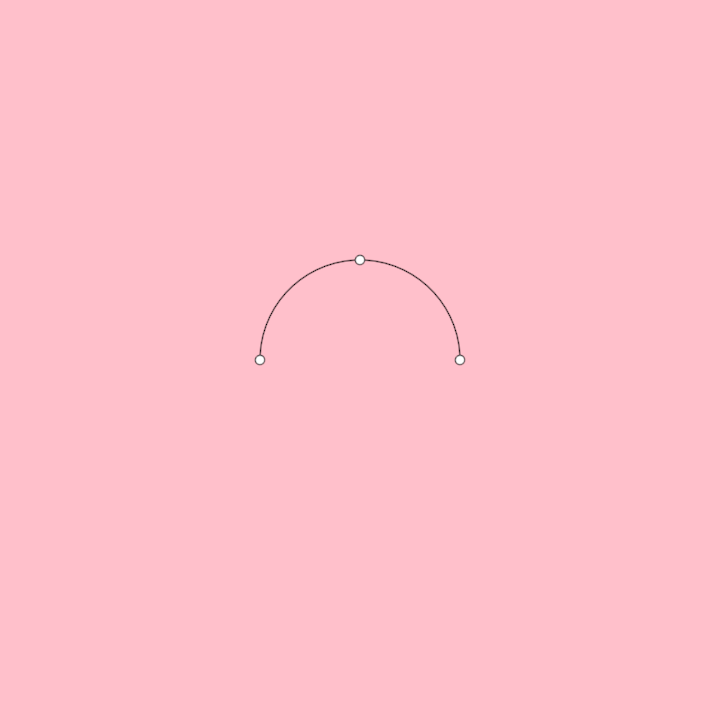
primitives/DemoCircleInversion01

primitives/DemoCircleInversion02
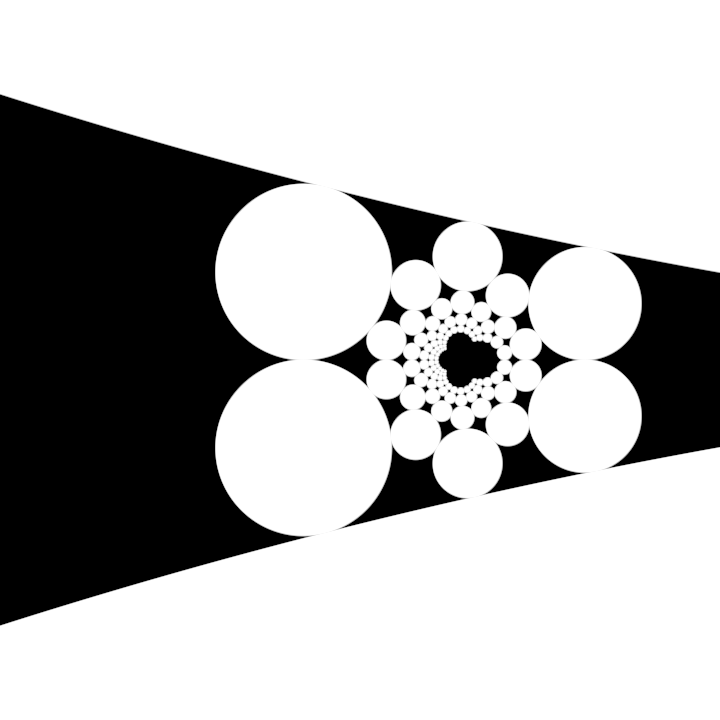
primitives/DemoCircleInversion03
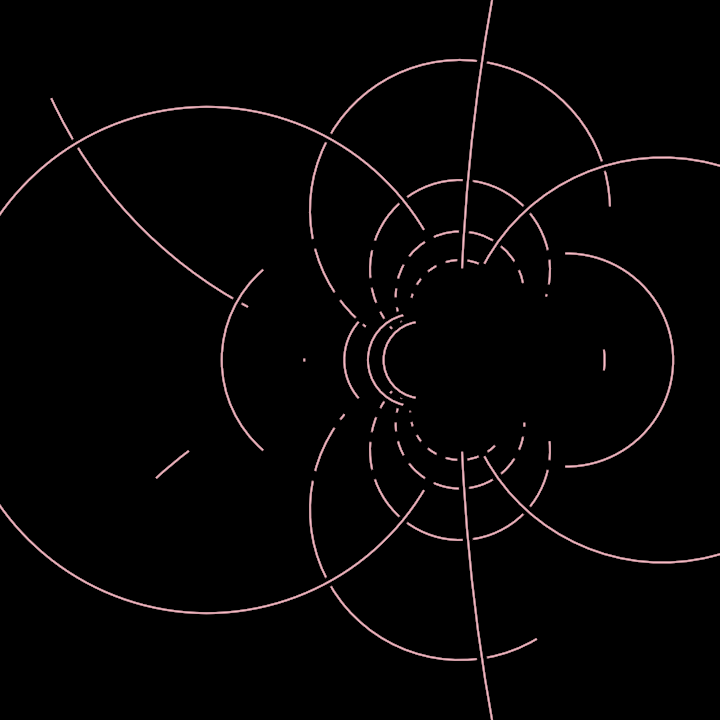
primitives/DemoNet01
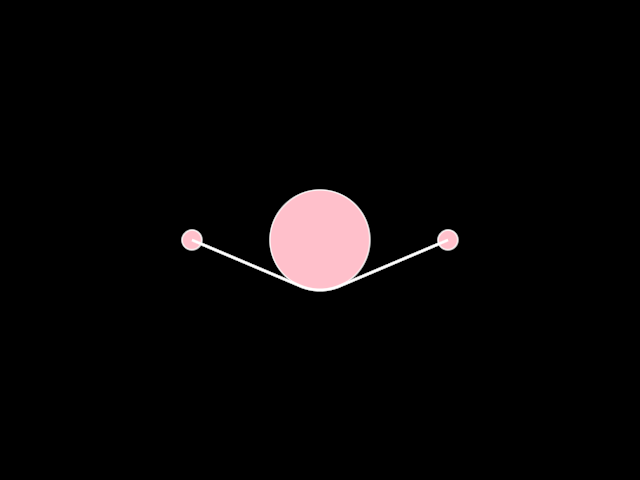
primitives/DemoPulley01
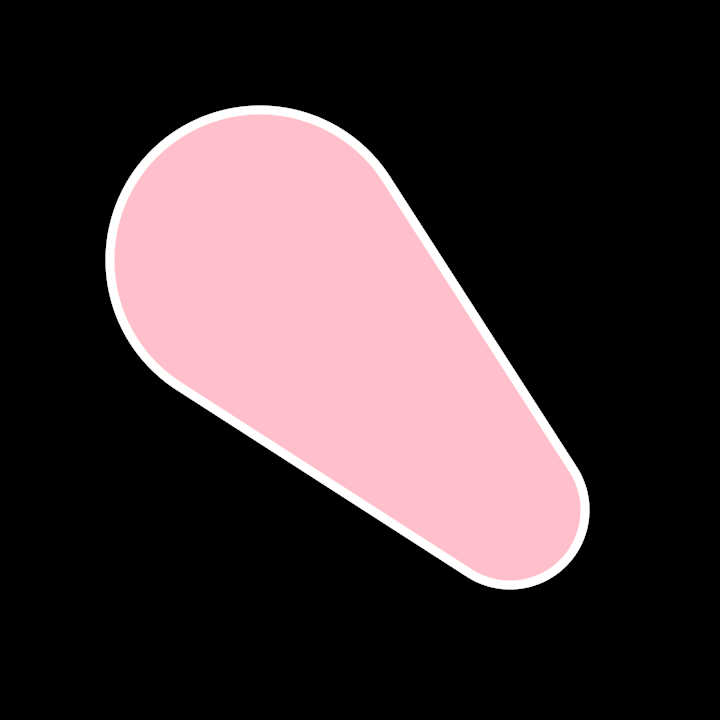
primitives/DemoRectangleDistribute01
of rectangles, which are generated and manipulated based on time and random parameters. The application follows these steps:
- Initializes a random generator seeded with the elapsed seconds since the start of the program.
- Creates a sequence of rectangles using the
uniformSubfunction to generate random sub-rectangles within the bounding rectangle of the canvas. - Distributes the generated rectangles horizontally within the canvas using the
distributeHorizontallymethod. - Aligns the rectangles vertically according to their position in relation to the bounding rectangle and a dynamic anchor point derived from the cosine of elapsed time.
- Renders the rectangles on the canvas in the output window.
primitives/DemoRectangleFitHorizontally
primitives/DemoRectangleGrid01
primitives/DemoRectangleGrid02
primitives/DemoRectangleGrid03
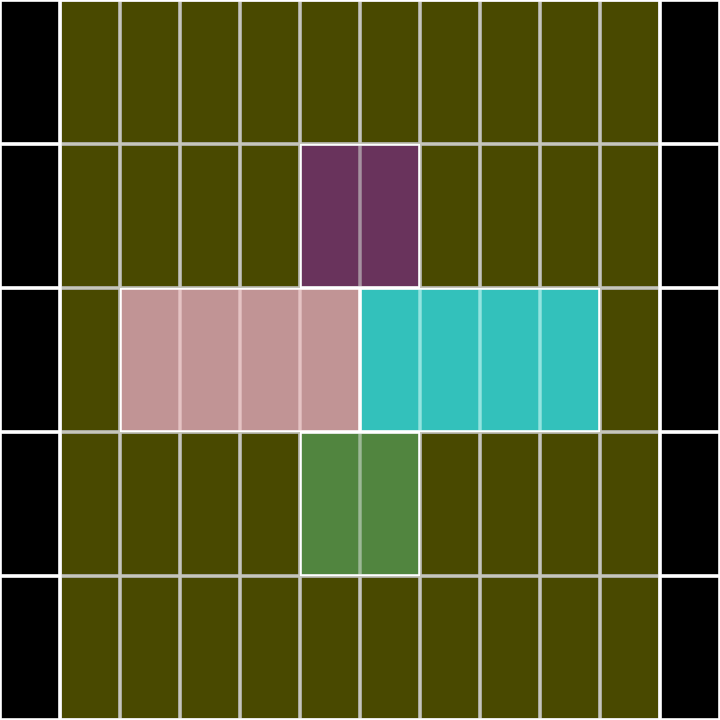
primitives/DemoRectangleIntersection01
Demonstrate rectangle-rectangle intersection
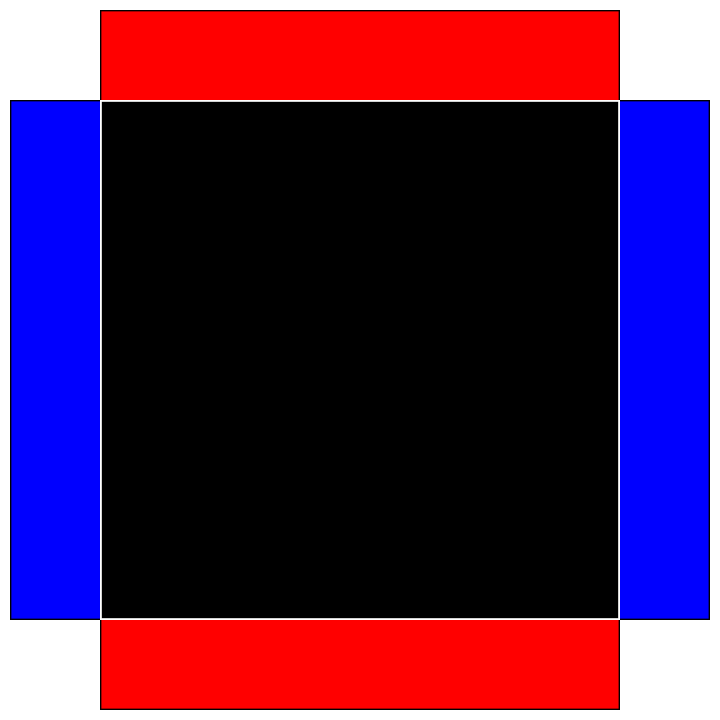
primitives/DemoRectangleIrregularGrid
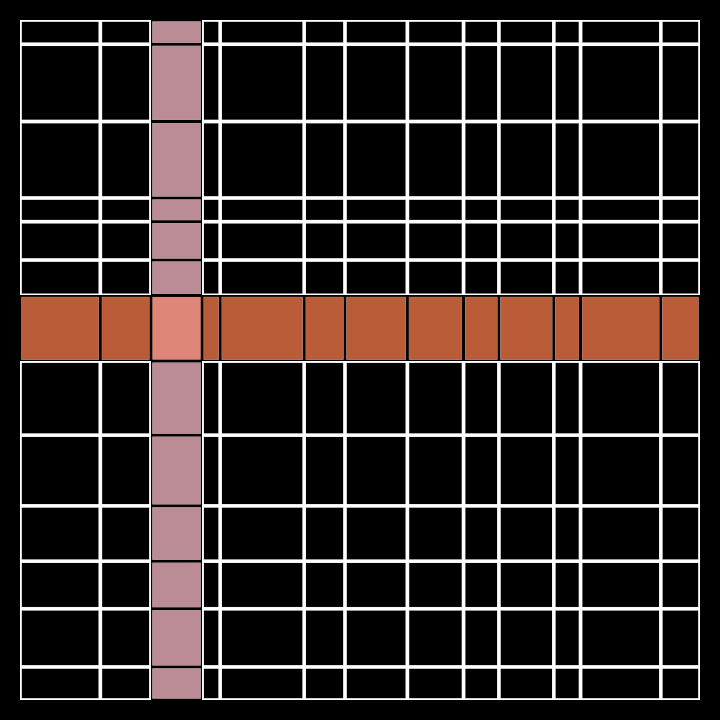
primitives/DemoRectanglePlace01
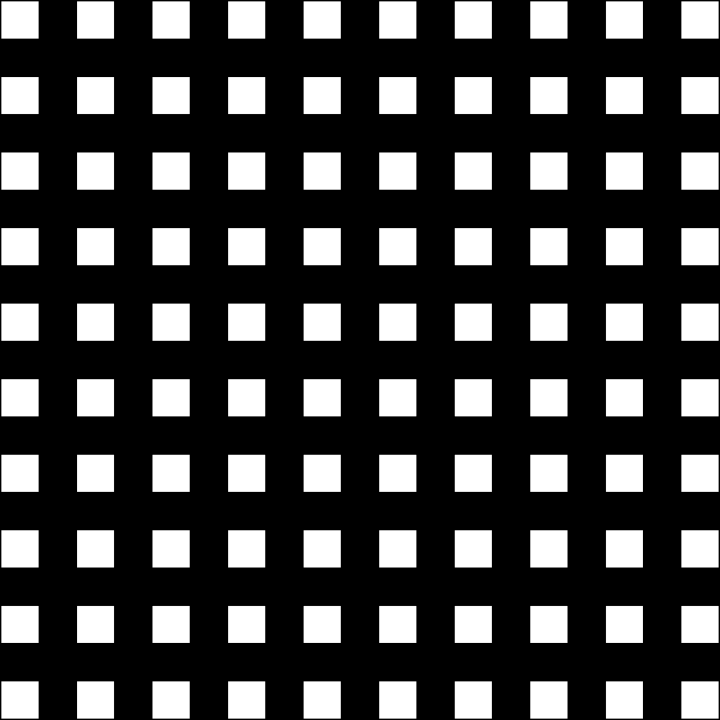
Demo for rendering a 10x10 grid of rectangles within the bounds of the canvas. Each rectangle's position is calculated relative to its anchors, filling the entire canvas with evenly placed items.
The rectangles are drawn using the default white color. The place function is applied to each
rectangle to position them dynamically based on their relative anchor points within the bounding area.
This serves as a demonstration of positioning and rendering shapes in a structured grid layout.
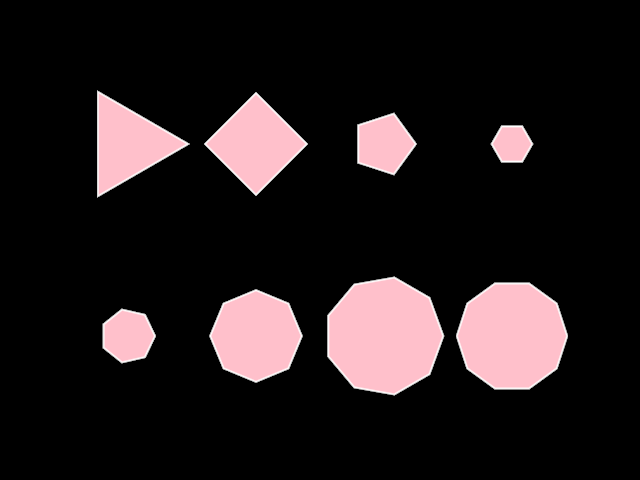
primitives/DemoRegularPolygon
primitives/DemoRegularStar01
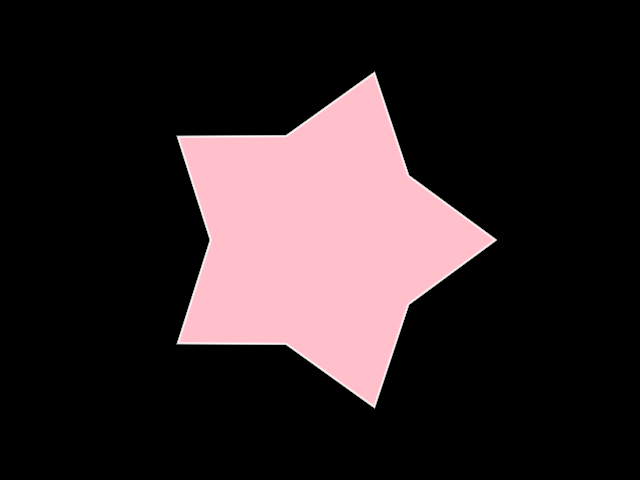
primitives/DemoRegularStar02

primitives/DemoRoundedRectangle
primitives/DemoSplit01
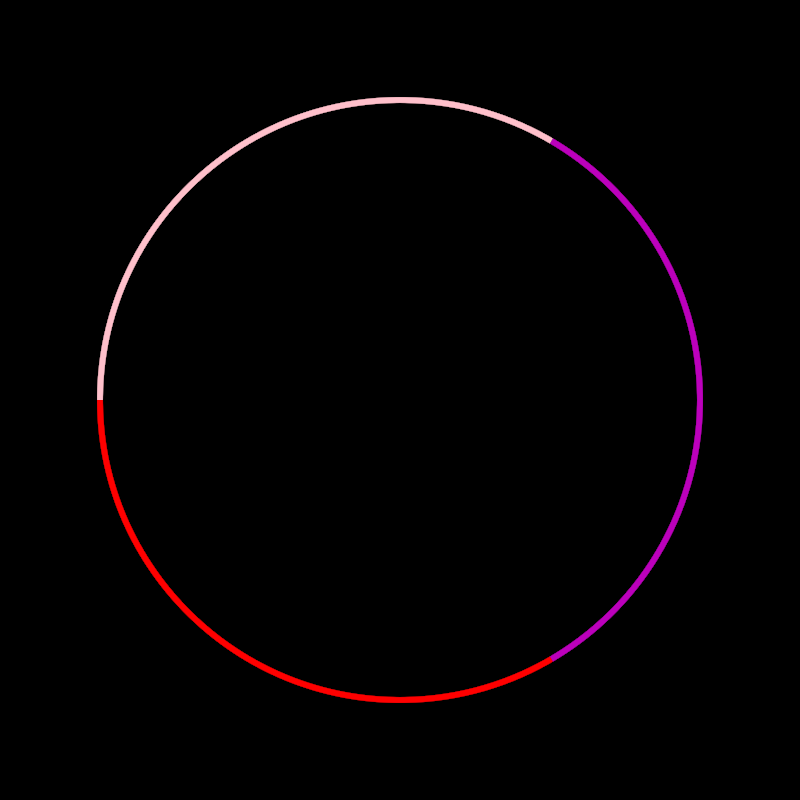
primitives/DemoTear01
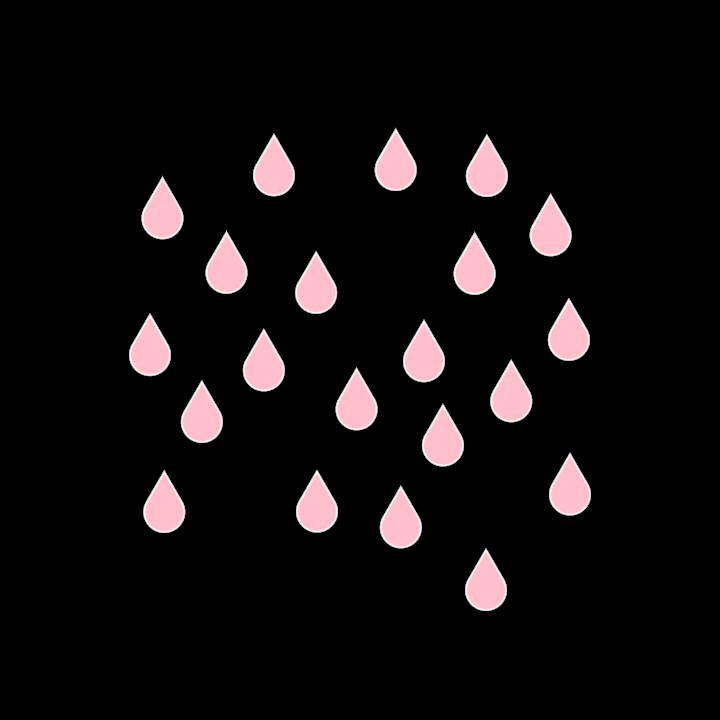
rectify/DemoRectifiedContour01
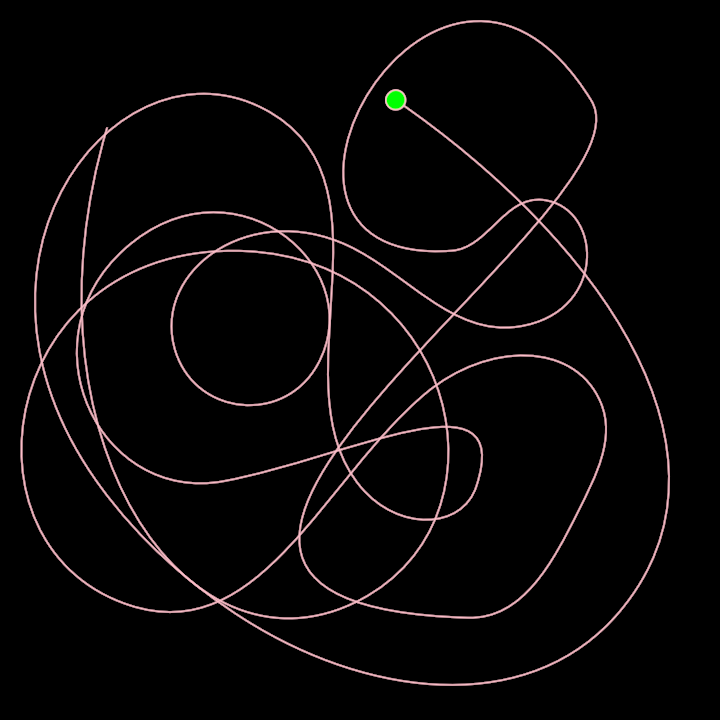
rectify/DemoRectifiedContour02
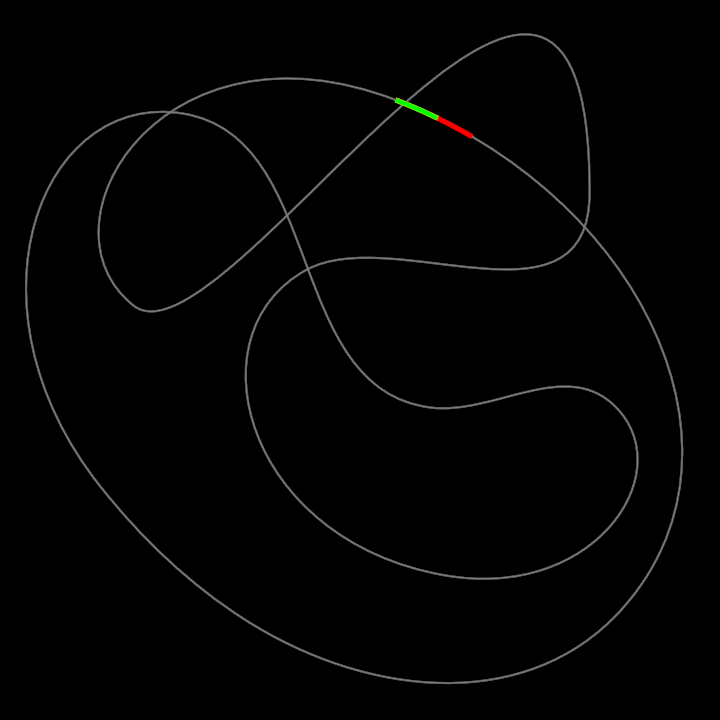
rectify/DemoRectifiedContour03
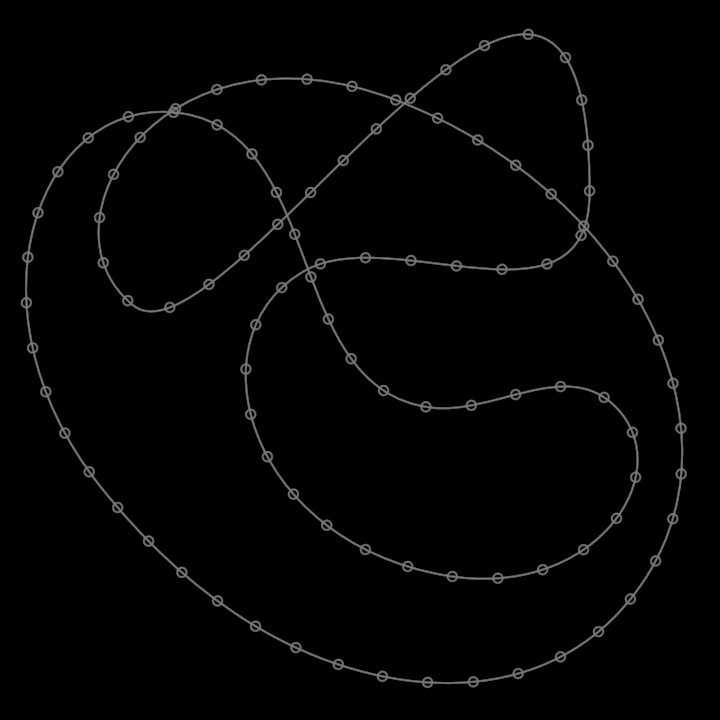
rectify/DemoRectifiedContour04
rectify/DemoRectifiedPath3D01
text/DemoText01
tunni/DemoTunniAdjuster01
tunni/DemoTunniPoint01
